
If you have a video with Chinese speech and want to add Traditional Chinese subtitles to it, Subtitle Edit provides a simple way to do it on Windows. In this guide, I will walk through the complete process using Subtitle Edit 4.0.15, from installation to configuring Whisper and exporting the final subtitle file.
Subtitle Edit is a free, open-source subtitle editor, and its Audio to text feature supports multiple Whisper-based engines. Its documentation specifically lists Purfview’s Faster-Whisper as a supported Windows option, and Purfview says its standalone executables are meant to be used in programs like Subtitle Edit.
Why use Subtitle Edit for this
The main reason is simple: Subtitle Edit is built for subtitle work, not just raw transcription. You can open your video, generate subtitles, review the timing, fix lines in the editor, and then export the result as an .srt file in the same application. Subtitle Edit also supports many subtitle formats, and its documentation recommends time-based subtitles in normal video workflows.
For this guide, I use Purfview’s Faster-Whisper-XXL as the engine. Purfview describes its project as standalone Whisper and Faster-Whisper executables for people who do not want to bother with Python, and says they are meant to be used in programs like Subtitle Edit.
What you need
You need a Windows PC, the video file you want to transcribe, and enough memory for the model you choose. Subtitle Edit’s documentation notes that Whisper requirements vary by engine and model, and that the large model can require up to 16 GB of RAM.
1. Download and install Subtitle Edit 4.0.15
Go to the Subtitle Edit 4.0.15 release page and download SubtitleEdit-4.0.15-Setup.exe. The 4.0.15 release is marked as Latest, and the release page lists both the installer and the portable zip package. It identifies SubtitleEdit-4.0.15-Setup.exe as the Windows installer version.
Run the installer, complete the setup, and then launch Subtitle Edit.
2. Open your video
Start Subtitle Edit and open the video you want to subtitle.
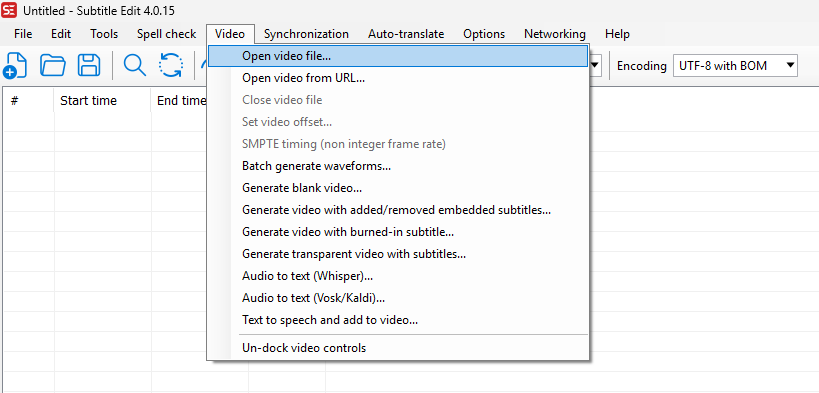
Go to:
Video -> Open video file…
If this is your first time opening a video in Subtitle Edit and no supported video player is installed yet, Subtitle Edit may ask you to install a video player first. In my case, it recommended mpv.
If that prompt appears, click:
Download and use “mpv” as video player
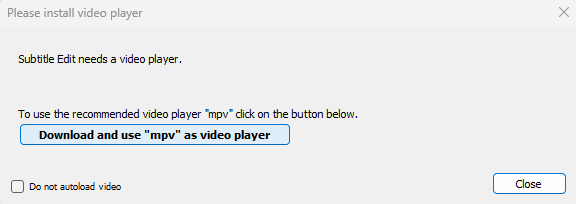
After the installation finishes, open your video again.
3. Open the Whisper transcription window
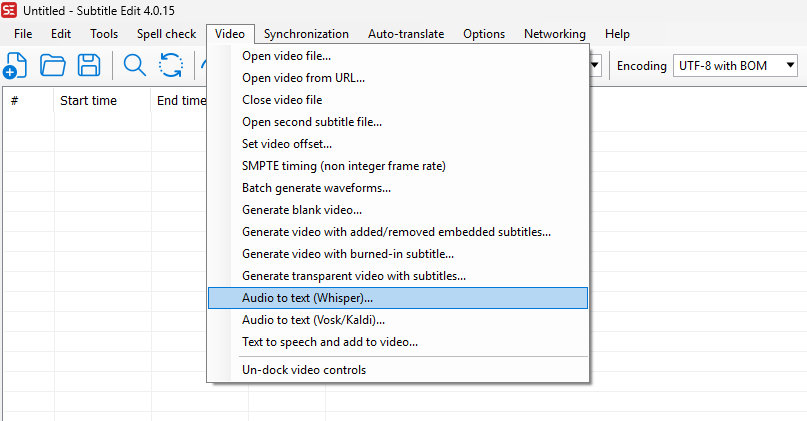
Once the video is loaded, go to:
Video -> Audio to text (Whisper)…
Subtitle Edit’s documentation identifies Video -> Audio to text… as the entry point for its speech-to-text workflow, and says the Whisper-based framework works on around 100 languages.
If this is your first time opening the Audio to text window, Subtitle Edit may first show a Download FFmpeg prompt.
If that prompt appears, click:
Yes
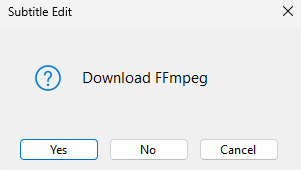
Then wait for FFmpeg to finish downloading and installing.
After that, when the Audio to text window opens, Purfview’s Faster-Whisper-XXL may already be selected as the default engine. On first use, Subtitle Edit may immediately ask you to download it.
If that prompt appears, click:
Yes
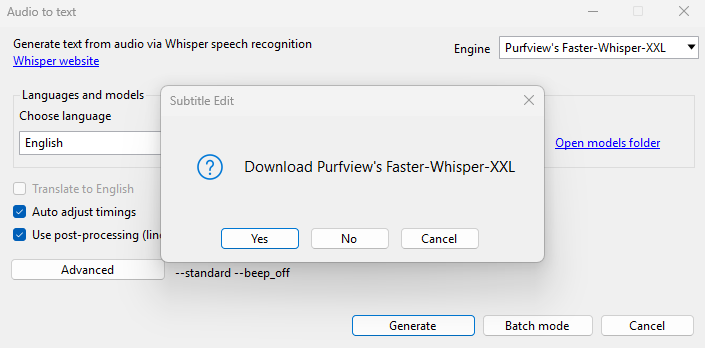
Then wait for the download and installation to finish before continuing.
4. Confirm the transcription engine
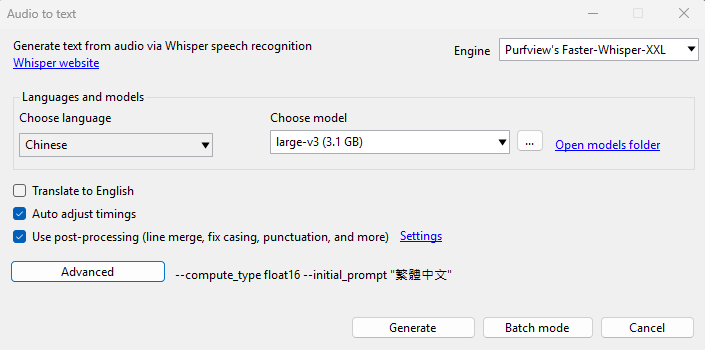
In the Audio to text window, make sure Engine is set to:
Purfview’s Faster-Whisper-XXL
Subtitle Edit documents Purfview’s Faster-Whisper as a supported Whisper version on Windows, and Purfview says its executables are designed for use in tools like Subtitle Edit.
5. Download and choose the model
Set Choose language to:
Chinese
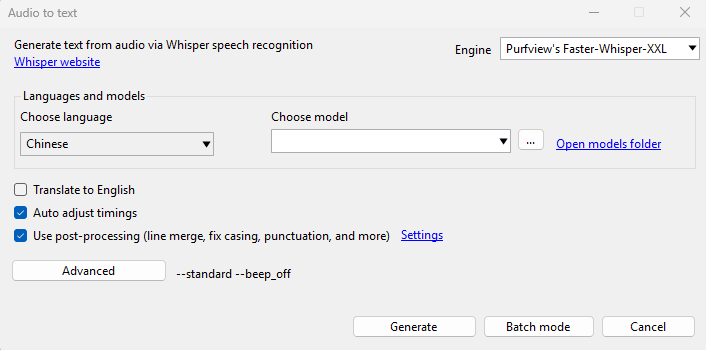
If this is your first time using Whisper in Subtitle Edit, the Choose model list may be empty at first. In that case, click the ... button next to the model field.
A Download Whisper models window will appear. Download the model you want to use.
In this guide, I use:
large-v3 (3.1 GB)
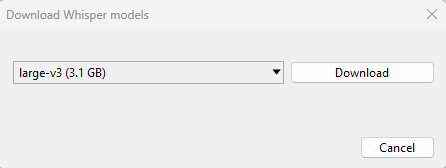
After the download finishes, go back to the Choose model list and select the model you downloaded.
Subtitle Edit’s documentation includes manual model download links for Whisper, including large (v3).
6. Make sure translation is off
Leave Translate to English unchecked.
You want Subtitle Edit to transcribe the Chinese speech as Chinese text, not translate it into English.
7. Enable timing adjustment and post-processing
Turn on these options:
Auto adjust timings
Use post-processing
This helps make the generated subtitle result easier to work with before you start manual cleanup.
8. Add a Traditional Chinese prompt
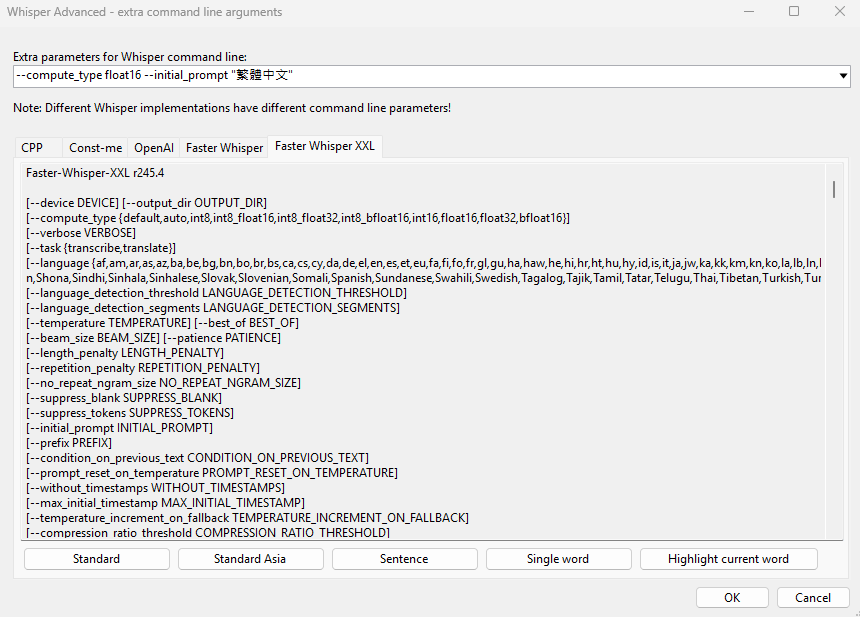
Click Advanced and enter this:
--compute_type float16 --initial_prompt "繁體中文"In my setup, --compute_type float16 was not optional. Subtitle Edit would not run Purfview’s Faster-Whisper-XXL properly unless I explicitly added it in the Advanced settings.
The float16 part is tied to GPU inference. CTranslate2 documents float16 as a supported compute type on NVIDIA GPUs with Compute Capability 7.0 or higher, and says that in this mode all model weights are stored in half precision and all layers run in half precision. Purfview also notes that its programs automatically choose GPU when CUDA is detected.
The other important part is:
--initial_prompt "繁體中文"OpenAI’s Whisper prompting guide explains that prompts are mainly used to maintain context and writing style across segments. It also notes that Whisper follows the style of the prompt rather than instructions contained within it, and that only the final 224 tokens of the prompt are used. That is why a short prompt like 繁體中文 is a practical way to steer the output toward Traditional Chinese script.
9. Generate the subtitles
Once the settings are ready, click Generate.
Subtitle Edit will process the audio from the video and insert subtitle lines into the main editor. At that point, you should see Chinese subtitle output inside Subtitle Edit, with the short prompt helping push the script style toward Traditional Chinese.
10. Review the result
After generation, review the subtitle lines in Subtitle Edit.
First, check that the output is in Traditional Chinese. Then review the line breaks and timing. Subtitle Edit is designed for this edit-after-transcription workflow, so you can directly correct text and timing in the main subtitle list.
11. Save the subtitle file
When you are done, save the subtitle in the format you want. For most cases, SubRip (.srt) is the safest choice because it is widely supported and time-based.
Use:
File -> Save as…
Then choose SubRip (.srt).