
Goal: Use IntelliJ IDEA Ultimate on Windows 11 to edit and run Kiwi TCMS on a GUI-less Ubuntu 24.04 server via JetBrains Gateway (SSH). All compute (indexing, run/debug) runs on the server; your Windows machine shows a thin JetBrains UI. Browse the app at http://127.0.0.1:8000/ via port forwarding.
Server prep (do this first):
Development only. For production, use a real WSGI/ASGI server, reverse proxy, TLS, and a managed database.
Prerequisites
Windows 11
- IntelliJ IDEA Ultimate (signed in).
- JetBrains Gateway (from JetBrains Toolbox or standalone).
- Built-in OpenSSH client (PowerShell
ssh).
Ubuntu 24.04 (headless)
- Prepared exactly as in the linked post: repo at
~/Kiwi, venv at~/kiwi-env, Node vianvm,npm installin~/Kiwi/tcms, DB migrated, superuser created. - SSH access (examples use user
administrator).
1. Connect with Gateway → SSH
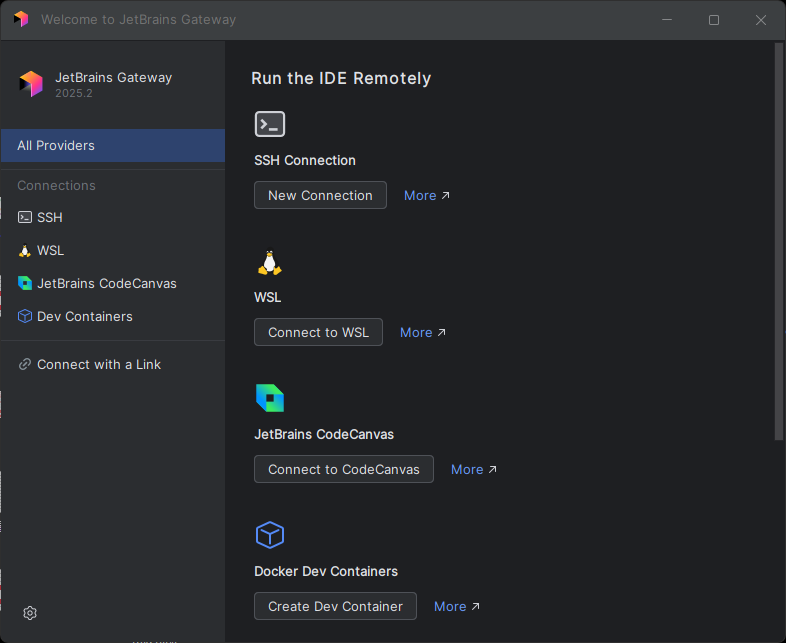
- Launch JetBrains Gateway → SSH → New Connection.
- Host:
client.maksonlee.comUsername:administrator.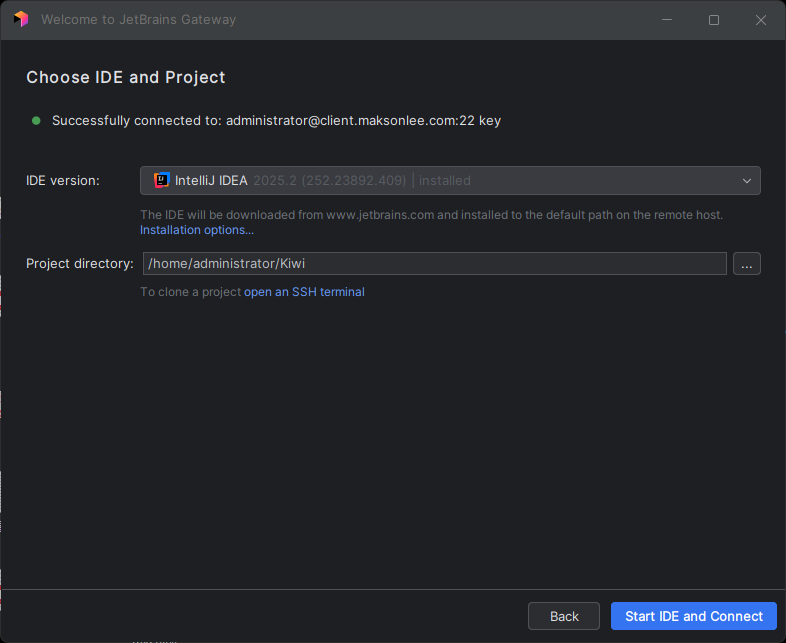
- IDE backend: IntelliJ IDEA.
- Project directory:
/home/administrator/Kiwi.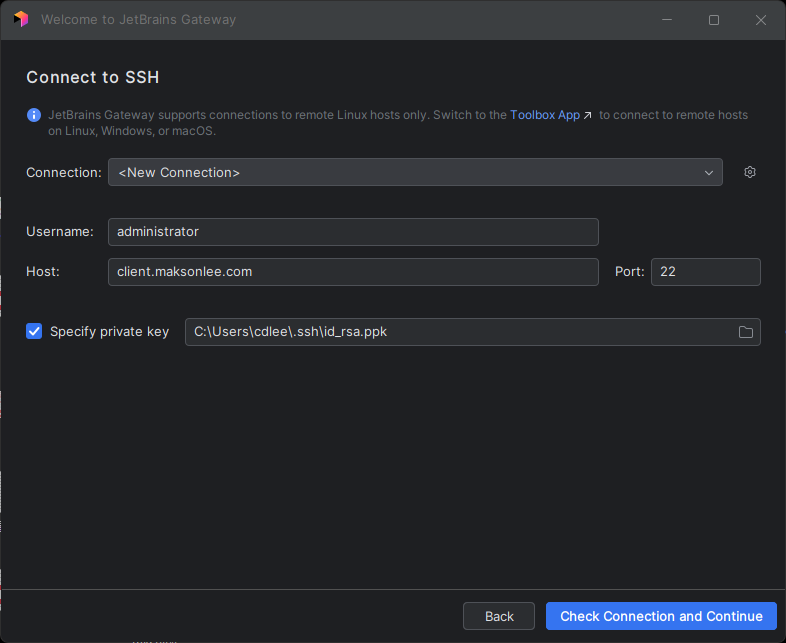
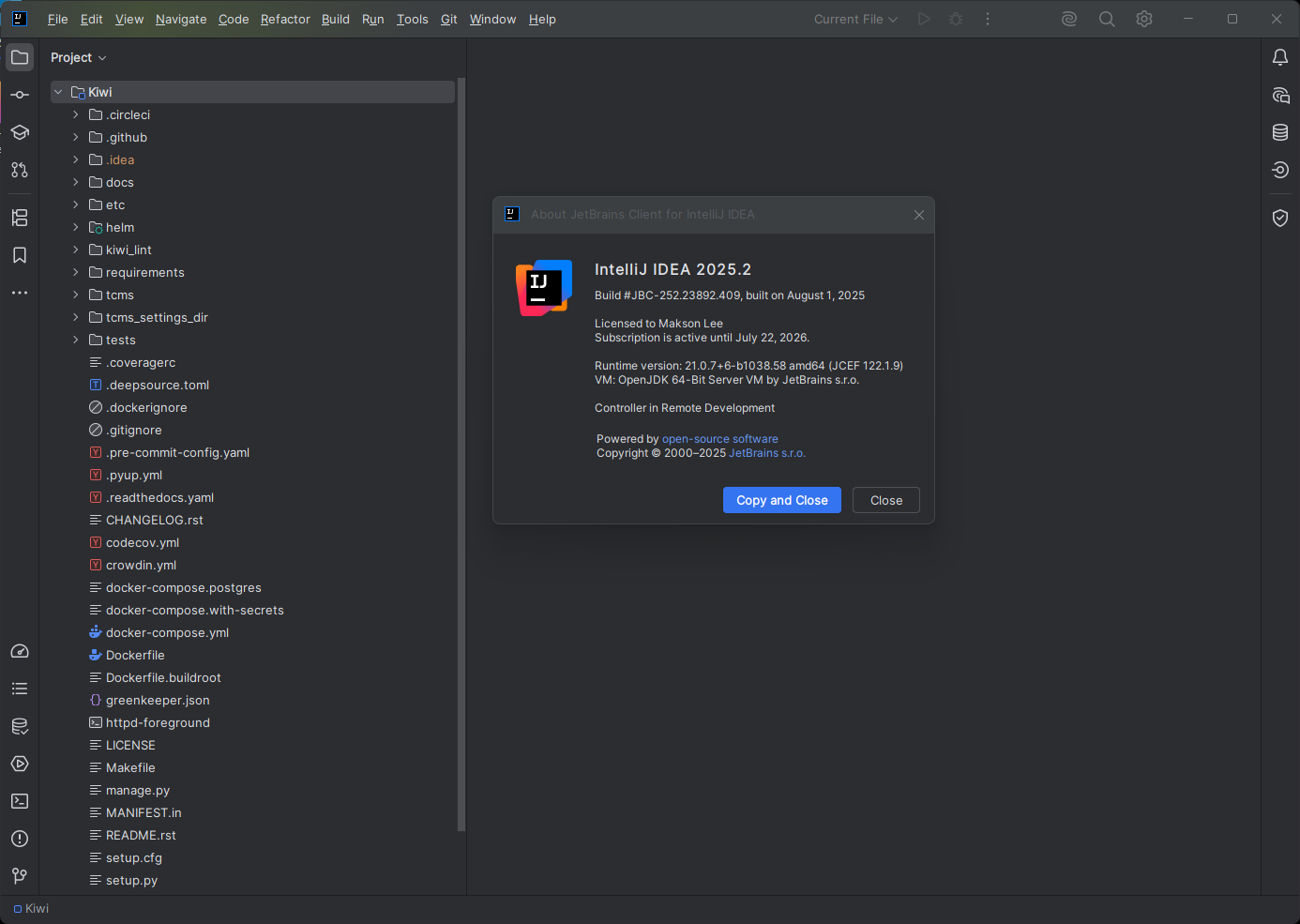
- Click Start IDE and Connect → a JetBrains Client window opens on Windows (the IDE backend runs on the server).
2. Install plugins on Host (server-side IDE)
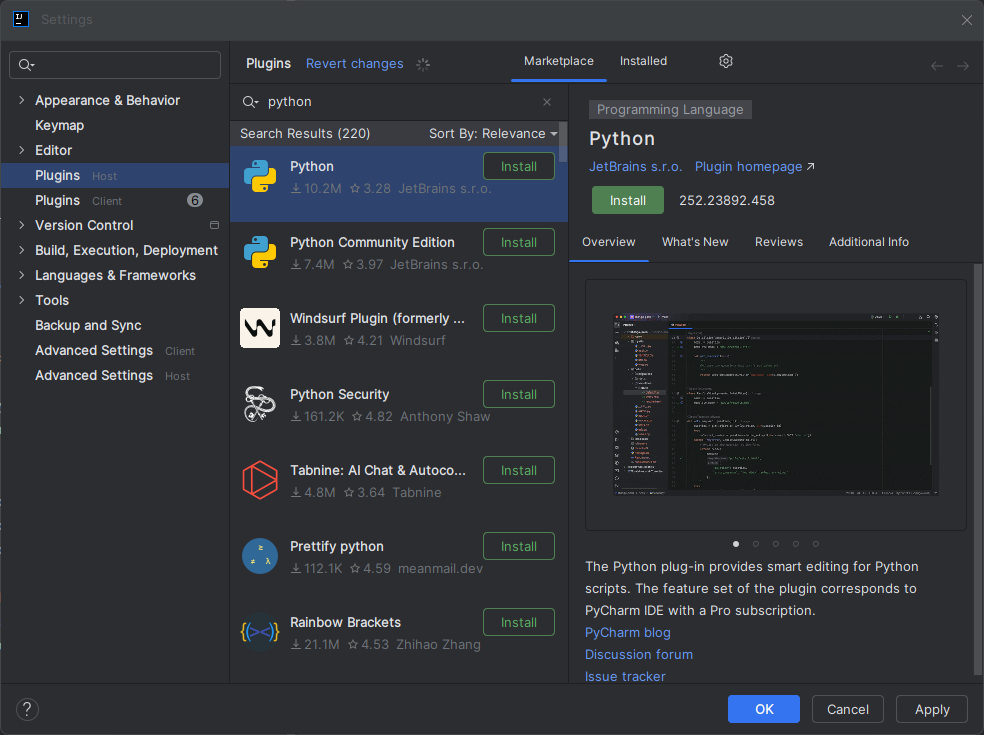
In JetBrains Client → Settings (Ctrl+Alt+S) → Plugins → Host:
- Install Python (by JetBrains).
- Install Django (by JetBrains).
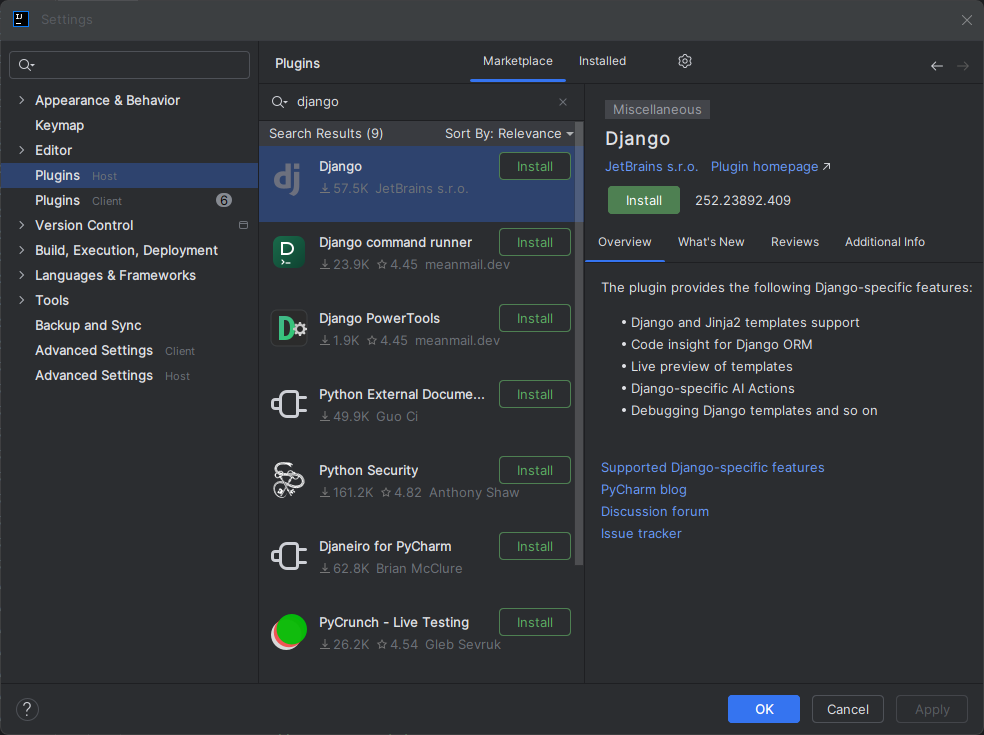
- Restart the remote IDE backend when prompted.
Make sure both show under Host, not only Client.
3. Point IntelliJ to the server venv (IntelliJ way)
IntelliJ uses Project Structure for Python interpreters.
- Project Structure (Ctrl+Alt+Shift+S) → SDKs → + → Add Python SDK from disk… → choose:
/home/administrator/kiwi-env/bin/python - Project → SDK: select Python 3.12 virtualenv at
~/kiwi-env.

- Modules → Dependencies → Module SDK: set the same SDK if needed.
4. Enable Django
Settings → Languages & Frameworks → Django → Enable Django Support
- Django project root:
/home/administrator/Kiwi - Settings: select
tcms/settings/devel.py(Kiwi TCMS dev settings) - Manage script:
manage.py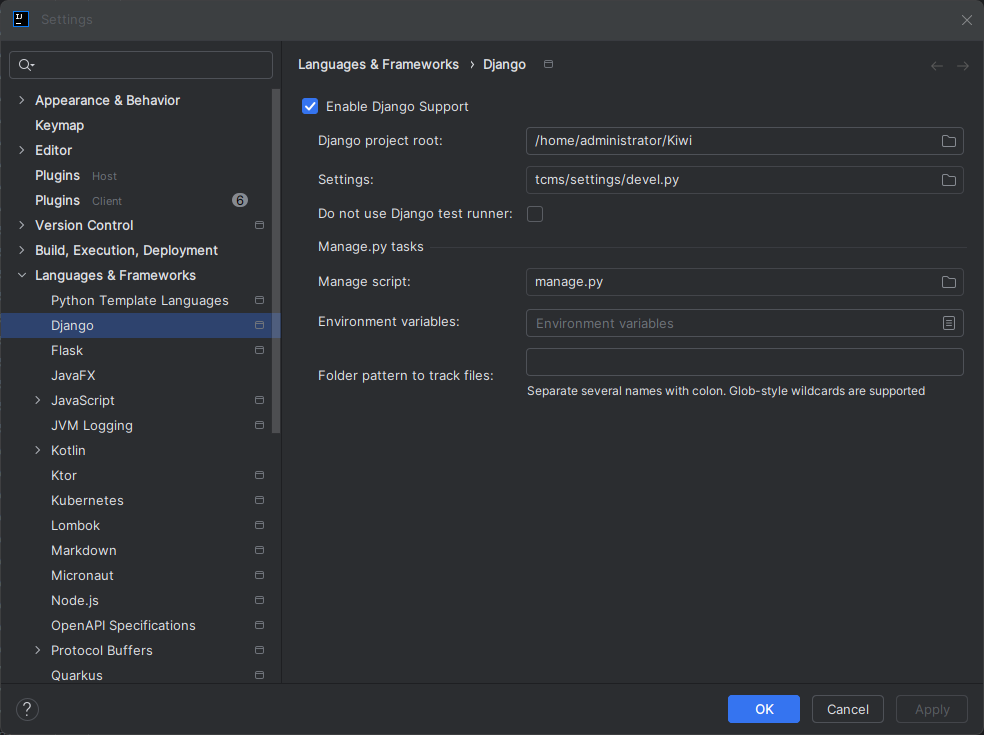
5. Create run/debug configurations
- Webpack (watch)
Use a login shell:
source ~/.bashrc; cd ~/Kiwi/tcms && ./node_modules/.bin/webpack watch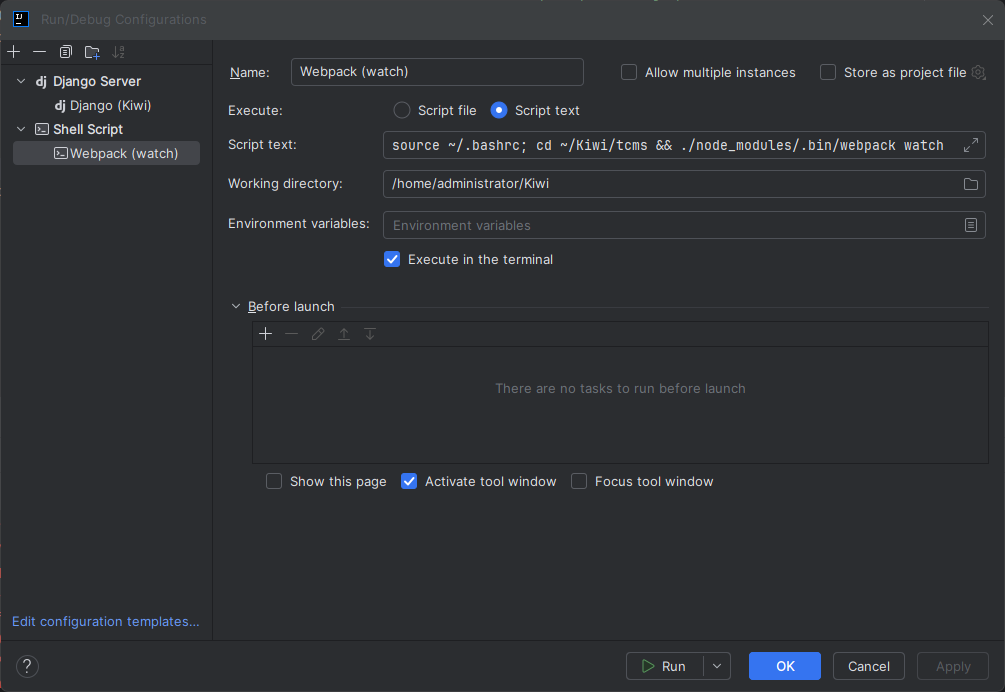
- Django (runserver)
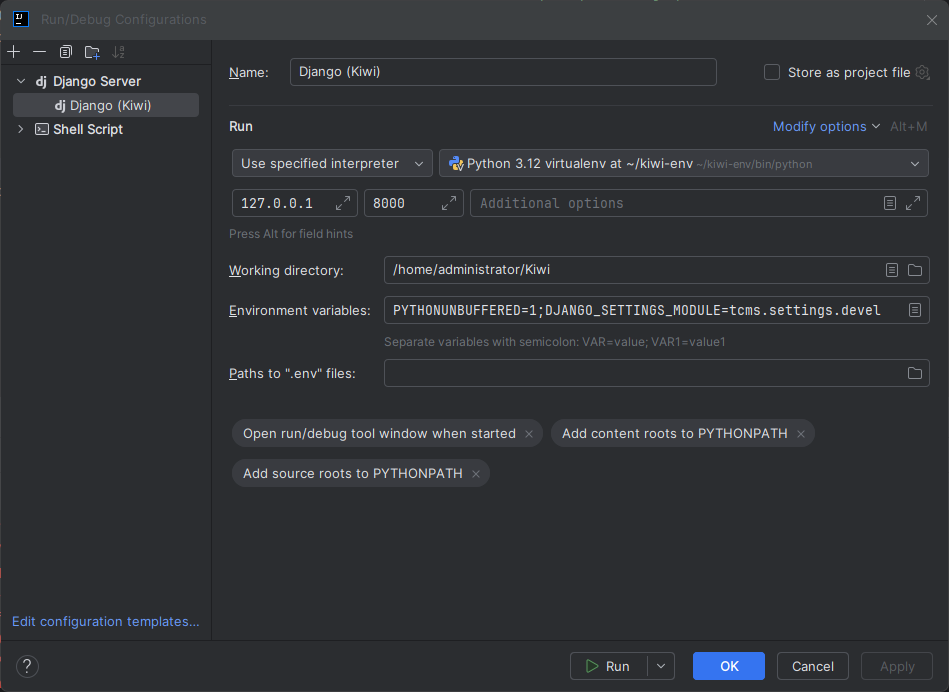
Run → Edit Configurations… → + → Django Server
Name: Django (Kiwi)
Host: 127.0.0.1
Port: 8000
Working directory: /home/administrator/Kiwi
Python interpreter: Python 3.12 virtualenv at ~/kiwi-env
(Optional) Environment: PYTHONUNBUFFERED=1; DJANGO_SETTINGS_MODULE=tcms.settings.devel
- (Optional) One-click start for both
Run → Edit Configurations… → + → Compound
Name: Kiwi: Webpack + Django
Add: Webpack (watch), Django (Kiwi)
Start Webpack first (or the Compound), then Django.
6. Open the app locally (forward 8000 → Windows)
Option A — inside IntelliJ (recommended): When Django is running, the Run window shows a listening port 8000. Click the port badge → Forward Port (or Forward & Open in Browser).
Option B — classic PowerShell SSH:
ssh -N -L 8000:127.0.0.1:8000 administrator@client.maksonlee.comOpen http://127.0.0.1:8000/.
7. Verify
- Kiwi TCMS homepage opens at http://127.0.0.1:8000/; log in with the superuser.
- Webpack rebuilds on file changes.
- Django shows access logs/tracebacks in the Run tool window.