
Semgrep is a powerful static analysis tool for catching security vulnerabilities and code quality issues. But after scanning, teams often struggle with organizing, assigning, and tracking those findings, especially across large or fast-moving projects.
That’s where DefectDojo comes in. It provides a structured way to manage Semgrep findings across time, modules, and teams, all from a central dashboard.
Prerequisites
Before you begin, make sure you’ve set up the following:
1. Run Semgrep and Export JSON
Use the following command to scan your codebase and export results in JSON format:
semgrep scan \
  --config=p/default \
  --exclude=out \
  --exclude=.repo \
  --exclude=prebuilts \
  --exclude=external \
  --exclude=tools \
  --metrics=off \
--json > semgrep-report.json2. Organize Findings in DefectDojo
DefectDojo structures findings with a clear hierarchy:
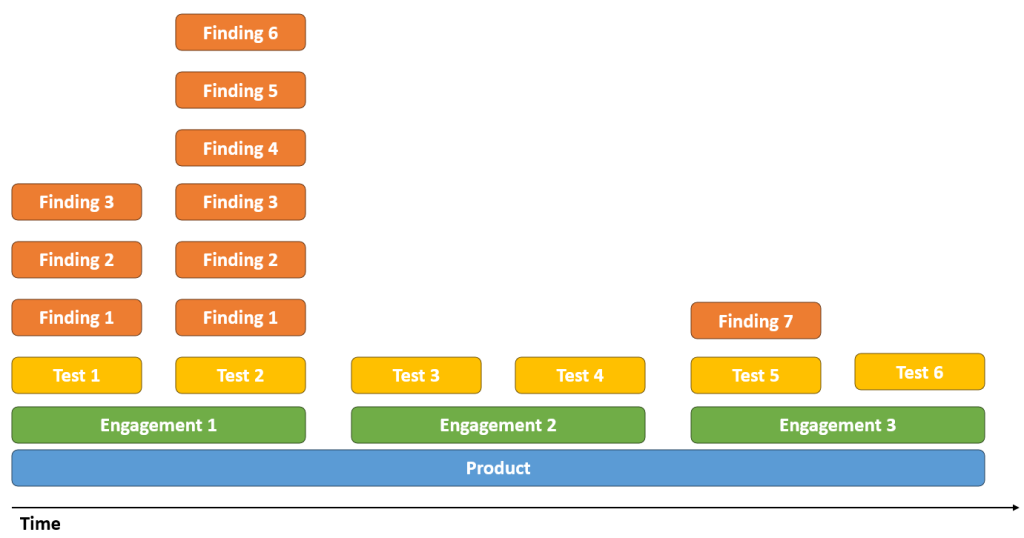
| Level | Purpose | Example |
|---|---|---|
| Product | App, system, or codebase | Mobile App |
| Engagement | Release or scan campaign | Weekly Scan |
| Test | Individual scan run | Semgrep – July 4, 2025 |
This model works well whether you’re scanning microservices, mobile apps, or monolithic platforms like AOSP.
3. Import the Semgrep Report
- In DefectDojo, go to your Engagement.
- Click Import Scan Results.
- Select:
- Scan Type:
Semgrep JSONReport - File:
semgrep-report.json
- Scan Type:
- Click Upload
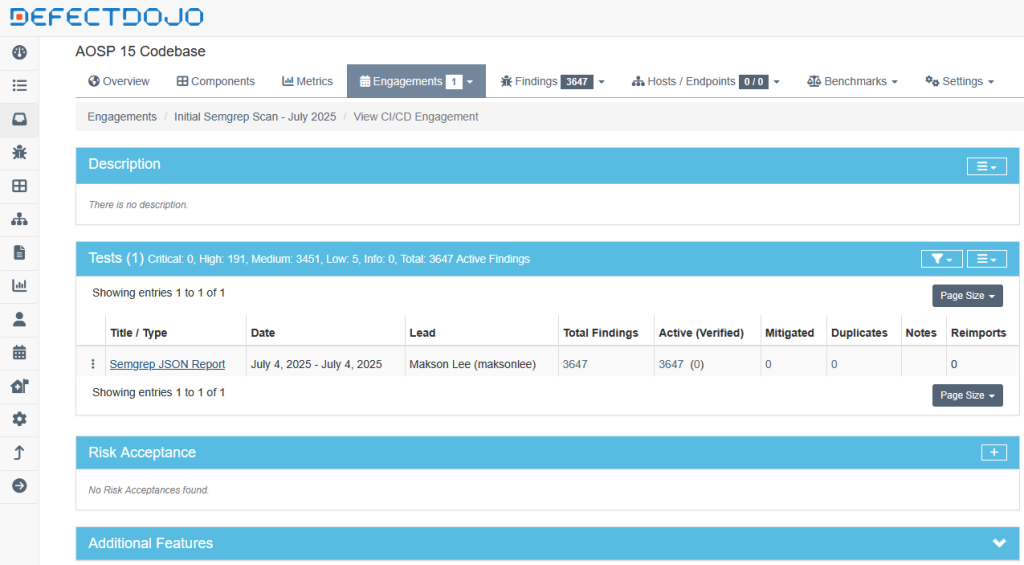
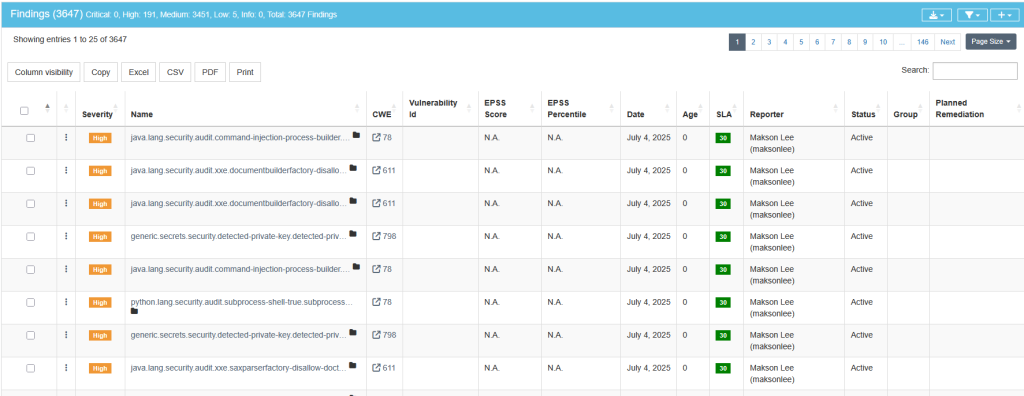
DefectDojo will automatically create a Test and add individual findings from the report.
4. Triage and Track Findings
Use DefectDojo’s rich UI to:
- Filter findings by severity, rule, or path
- Assign issues to developers
- Mark findings as false positive, duplicate, or mitigated
- Add tags, comments, or JIRA tickets
You can also compare scans over time or track whether issues were reintroduced in later releases.