
Running local AI on Windows 11 does not require a separate Linux machine. A clean setup is to run Ubuntu 24.04 inside WSL 2, install Ollama directly inside Linux, and use Open WebUI as the browser frontend. Ollama provides the local model runner and API, while Open WebUI connects to an existing Ollama backend. Docker supports Ubuntu 24.04, and WSL supports systemd-based Linux services.
This guide uses a setup tested on Windows 11, WSL 2, Ubuntu 24.04, and an NVIDIA GeForce RTX 5060 Ti 16GB. In the tested run, Ollama installed successfully, detected the NVIDIA GPU, exposed its API on 127.0.0.1:11434, downloaded gemma3:12b, and showed the model loaded on 100% GPU.
What this setup gives you
At the end of this guide, you will have:
- Ollama running inside WSL 2 Ubuntu 24.04
- Open WebUI running in Docker inside WSL
- a browser UI reachable from Windows
- a local model such as
gemma3:12bavailable through the web UI
Ollama binds to 127.0.0.1:11434 by default unless OLLAMA_HOST is changed, and Open WebUI can connect to that backend through its Ollama provider settings.
Prerequisites
Before starting, make sure these are already in place:
- Windows 11
- WSL 2
- Ubuntu 24.04
- an NVIDIA Windows driver that supports CUDA on WSL
- enough free disk space for models and containers
New Linux installations created with wsl --install use WSL 2 by default, and NVIDIA’s CUDA on WSL guide covers GPU acceleration for Linux workloads running inside WSL.
1. Verify that Ubuntu is running on WSL 2
From PowerShell on Windows, run:
wsl -l -vUbuntu should show Version 2. Microsoft recommends wsl -l -v to check which WSL version each installed distribution is using.
2. Check whether systemd is already enabled
Before making any changes, check whether systemd is already enabled. On some WSL Ubuntu installations, it is enabled by default. Microsoft says systemd is now the default for the current Ubuntu installed through wsl --install, but the manual /etc/wsl.conf method is still available for other distributions or older setups.
Inside Ubuntu, run:
ps -p 1 -o comm=
systemctl statusIf the first command returns systemd and systemctl status works, move on.
If systemd is not enabled, add this to /etc/wsl.conf:
[boot]
systemd=trueThen restart WSL from PowerShell:
wsl --shutdownMicrosoft documents both the default systemd behavior for current Ubuntu installs and the manual /etc/wsl.conf method.
3. Install Ollama in Ubuntu 24.04
Ollama’s official Linux install command is:
curl -fsSL https://ollama.com/install.sh | shThat is the documented install path for Linux. Ollama’s Linux docs also cover running it as a service and verifying GPU support.
In the tested setup, the installer first required zstd, so this sequence was used:
sudo apt update
sudo apt install -y zstd
curl -fsSL https://ollama.com/install.sh | sh
ollama --versionIn the tested run, this installed Ollama 0.18.3, created the ollama.service, detected the NVIDIA GPU, and made the API available at 127.0.0.1:11434.
4. Verify GPU access inside WSL
Before pulling a model, verify that Ubuntu can see the GPU:
nvidia-smiNVIDIA’s CUDA on WSL guide treats WSL GPU support as the supported path for GPU-accelerated Linux workloads on Windows. Ollama’s Linux flow also uses nvidia-smi as the basic verification step.
In the tested setup, nvidia-smi showed NVIDIA GeForce RTX 5060 Ti and about 11.7 GiB in use while the model was loaded.
5. Pull and test a model
To test the stack, run a model directly through Ollama. For example:
ollama run gemma3:12bOllama documents ollama run as the normal way to start a model. The official gemma3:12b page says the model requires Ollama 0.6 or later, supports text and image input, has a 128K context window, and supports 140+ languages.
Useful verification commands:
ollama list
ollama ps
curl http://127.0.0.1:11434/api/tagsIn the tested run, gemma3:12b downloaded successfully, appeared in ollama list, and ollama ps showed it loaded at 100% GPU.
6. Install Docker Engine in Ubuntu 24.04
7. Install Open WebUI
Open WebUI’s quick start recommends Docker and the ghcr.io/open-webui/open-webui:main image. Its standard Docker example uses port mapping, but its troubleshooting guide specifically recommends --network=host when the container needs to talk to an Ollama server already running on the host. In that host-network mode, the UI is served on port 8080.
For a WSL layout where Ollama is already running on the same Ubuntu instance at 127.0.0.1:11434, run:
docker pull ghcr.io/open-webui/open-webui:main

docker run -d \
  --network=host \
  -e OLLAMA_BASE_URL=http://127.0.0.1:11434 \
  -v open-webui:/app/backend/data \
  --name open-webui \
  --restart always \
ghcr.io/open-webui/open-webui:mainThen open this in a Windows browser:
http://localhost:8080
That port is correct for the host-network configuration documented by Open WebUI.
8. Create the initial admin account
On first launch, Open WebUI will show the account creation screen. Create the admin account and sign in.
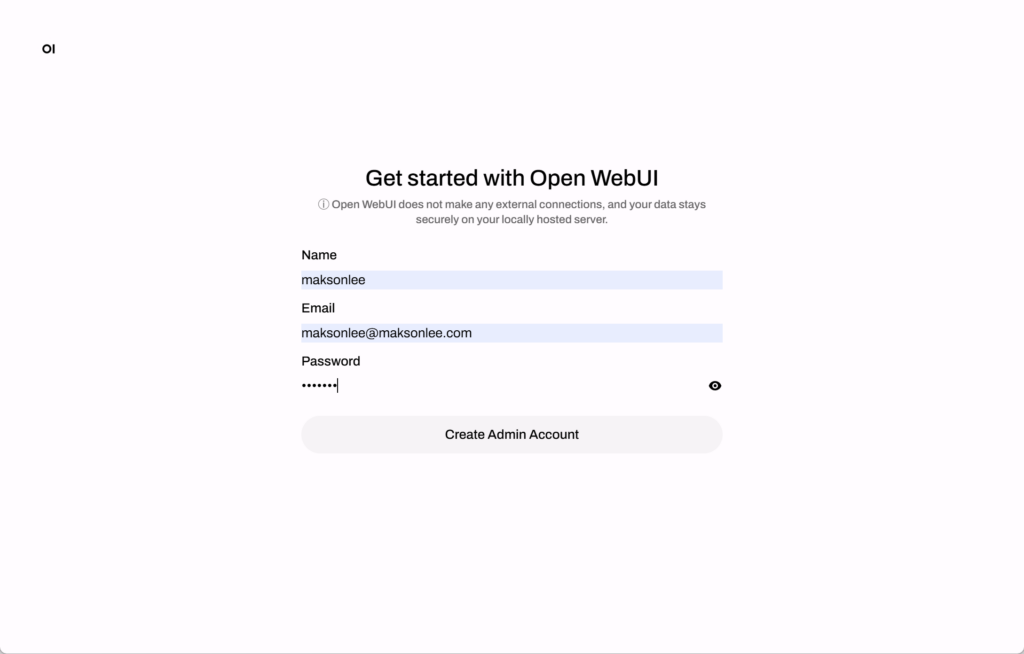
After sign-in, Open WebUI should be able to use the Ollama backend configured through OLLAMA_BASE_URL. Open WebUI’s Ollama integration docs describe managing Ollama under Connections → Ollama.
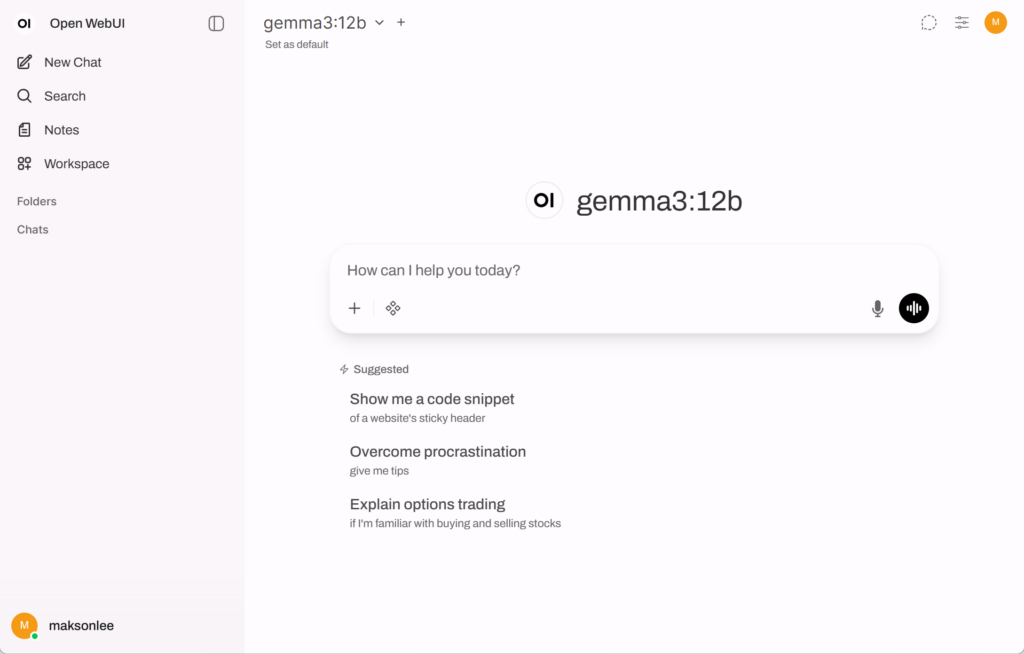
Final result
This setup gives Windows 11 users a clean local AI stack without depending on the Ollama Windows desktop app:
- Ubuntu 24.04 on WSL 2
- Ollama running natively inside Linux
- NVIDIA GPU acceleration available through WSL
- Open WebUI running in Docker
- a browser-based chat UI backed by local models such as
gemma3:12b