
By default, Keycloak allows any authenticated user to access any client in a realm. In production, we often want to restrict that, for example, only users with a specific role should be able to log into a system like Gerrit.
This guide shows how to achieve that using a clean, modular approach with subflows, while preserving the default login logic.
Goal
- Only users with realm role
gerrit-accesscan log into the Gerrit client - All other users are denied before any token is issued
- Create a Realm Role
In the Keycloak admin console:
- Go to Realm roles → Create role.
- Set:
- Role name:
gerrit-access
- Role name:
- Click Save.
This role will serve as the gate for accessing Gerrit.
- Assign Role to Users or Groups
Assign the gerrit-access role to whoever should be allowed into Gerrit.
Assign to individual users
- Go to Users → <user> → Role mappings → Assign role.
- Search for and select
gerrit-access. - Click Assign.
Assign to a group
- Go to Groups → <group> → Role mappings → Assign role.
- Search for and select
gerrit-access. - Click Assign.
Any user that has this role (directly or via a group) will be allowed to log into Gerrit once the flow is in place.
- Duplicate the Built-in Browser Flow
We’ll create a copy of the default browser login flow so we can customize it without touching the global default.
- Go to Authentication → Flows.
- Find the
browserflow. - Click Duplicate.
- Set:
- New flow name:
restricted-browser-gerrit
- New flow name:
- Click Save.
You now have an editable copy of the default browser login flow.
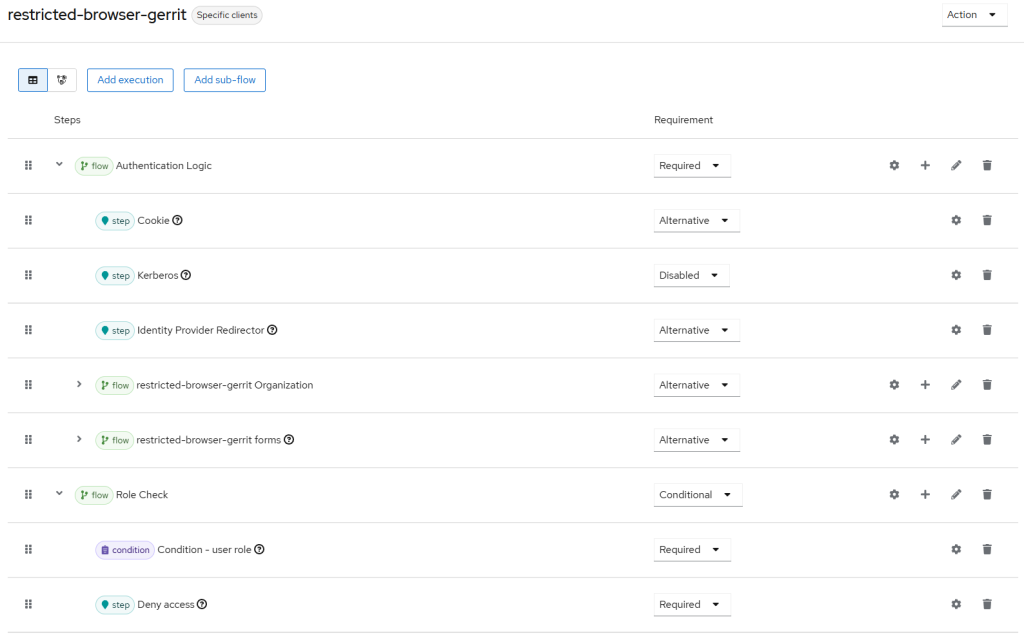
- Move All Existing Executions into a Sub-flow
Inside the restricted-browser-gerrit flow:
- Still under Authentication → Flows → restricted-browser-gerrit:
- Click Add sub-flow.
- Set:
- Name:
Authentication Logic - Flow type:
Generic - Requirement:
Required
- Name:
- Click Save.
- Move all existing executions from the top level into the
Authentication Logicsub-flow.
Note (tested on Keycloak 26.4.6):
In my experience, drag-and-drop in the Keycloak Authentication Flow UI is quite tricky. If you create the new Authentication Logic sub-flow and then add a dummy sub-flow or execution under it (and expand it), it becomes much easier to drag other executions into that sub-flow. Once everything is in place, you can simply delete the dummy entry.
- Add a Role Check Sub-flow
- Still in
restricted-browser-gerrit, click Add sub-flow:- Name:
Role Check - Flow type:
Generic - Requirement:
Conditional
- Name:
- Inside the
Role Checksubflow:- Click Add condition
- Select:
Condition – user role - Requirement:
Required - Configure:
- Role:
gerrit-access - Negate output: ON
- Role:
- Select:
- Click Add execution
- Select:
Deny access - Requirement:
Required
- Select:
- Click Add condition
- Assign Flow to the Gerrit Client
Finally, we bind this custom flow to the Gerrit client only, so the rest of the realm can keep using the default browser flow.
- Go to Clients → gerrit.
- Click the Advanced tab.
- Under Authentication flow overrides:
- Browser Flow: select
restricted-browser-gerrit
- Browser Flow: select
- Click Save.
Now, when users log into the Gerrit client, Keycloak will use your restricted flow. Other clients can still use the standard browser flow.
- Final Flow Structure
Did this guide save you time?
Support this site
Hi, thank you for this nice article!
But how do I move existing executions into a new subflow? Drag and drop wont let me do that…
Kind regards
In my experience, drag-and-drop in the Keycloak Authentication Flow UI is quite tricky. If you create a new sub-flow and then add a dummy sub-flow or execution under it (and expand it), it becomes much easier to drag other executions into that sub-flow. After everything is in place, you can simply delete the dummy entry.