
Goal: Make App A use the same Google Play app-signing certificate as App B.
Not a merge: Packages, installs, reviews, purchases stay separate.
Upload key: No change required.
Prerequisites
- Both apps in the same Play Console account.
- Play App Signing enabled on both.
- App A isn’t within Play’s once-annual signing-key upgrade limit.
- You have permission to manage app signing.
- App A has at least one AAB uploaded (Internal testing is fine).
Steps (Play Console)
- Open App A → Test and release → App integrity → Play app signing → Settings.
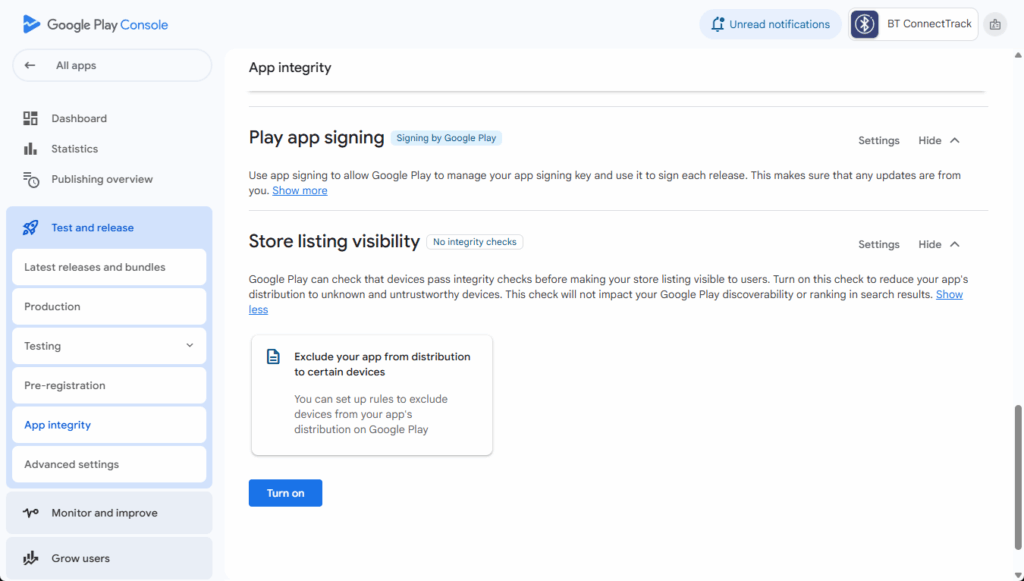
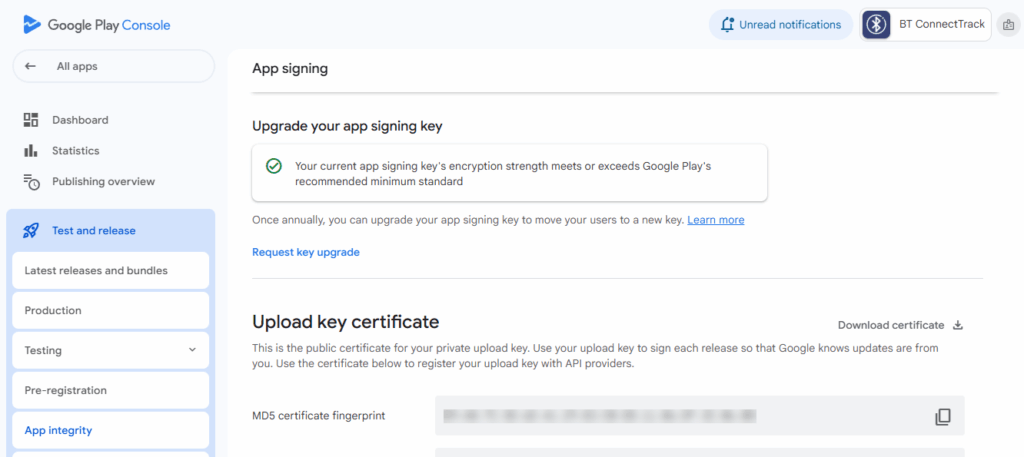
- Click Request key upgrade.
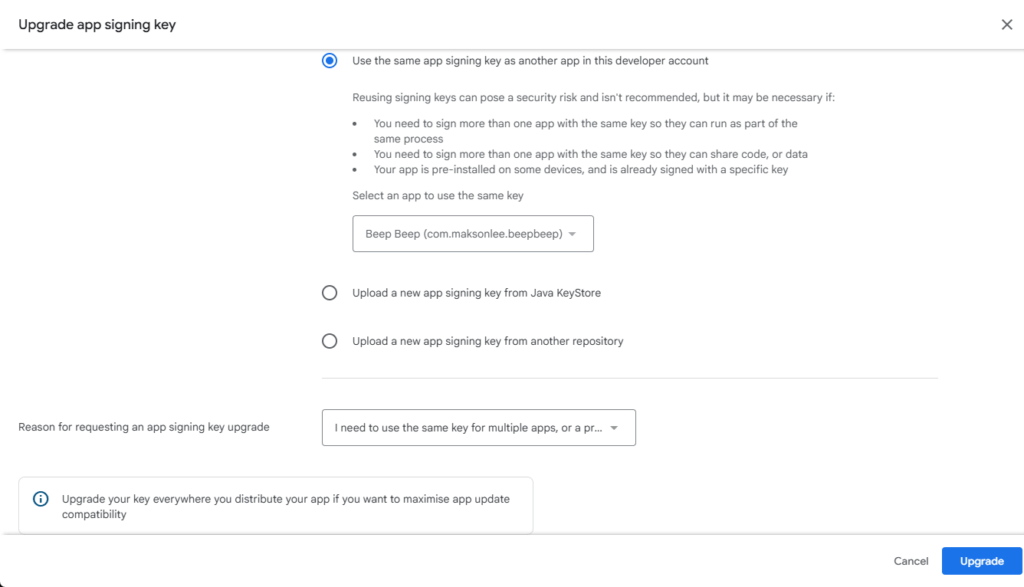
- Choose Use the same app signing key as another app in this developer account.
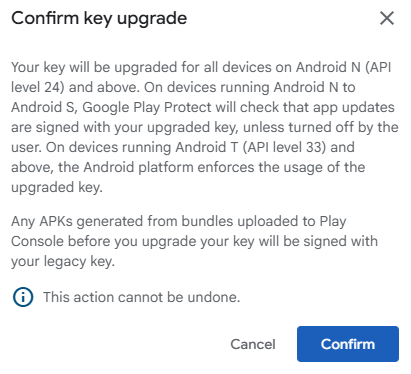
- Confirm key upgrade.
- Upload your next AAB; Play will sign it with App B’s key.
Verify
In App integrity → Play app signing → Settings, compare App signing key certificate of App A and App B—they should match.
Common blockers
- No “Request key upgrade”: Upload any AAB to Internal testing and refresh.
- Cooldown: If App A rotated within a year, rotate App B to App A’s key instead.
- Different accounts: Key reuse works only within the same developer account.
- Permissions: Your role must allow signing-key changes.
Notes
- Rotation is one-way and generally once per year per app.
- Sharing a key enables signature-level trust between the two apps; do it only if needed.
- You don’t need to change the upload key unless lost/compromised.
Did this guide save you time?
Support this site