
This post shows how to enable Keycloak authentication for an existing Argo CD deployment using OIDC + PKCE, so you can log in using:
- Argo CD Web UI (SSO)
- Argo CD CLI (
argocd login --sso)
PKCE is the recommended mode because it works cleanly for both UI and CLI.
This post is based on my Argo CD deployment posts:
Lab context
Argo CD:
- URL:
https://argocd.maksonlee.com - Namespace:
argocd - Exposed via Traefik
- TLS terminated at Traefik using wildcard cert
*.maksonlee.com - Argo CD server runs HTTP inside the cluster (
server.insecure=true)
Keycloak:
- URL:
https://keycloak.maksonlee.com - Realm:
maksonlee.com
Keycloak groups used by Argo CD:
argocd-adminsargocd-readonly
Argo CD RBAC behavior in this post:
- Users in
argocd-admins→ admin - Users in
argocd-readonly→ readonly - Everyone else who can authenticate → readonly (via
policy.default: role:readonly)
Keycloak users are not the same as Argo CD’s built-in local admin user. In this post, we grant permissions via Keycloak groups.
What you’ll build
- Keycloak OIDC client for Argo CD (public client + PKCE S256)
- Keycloak groups
argocd-admins/argocd-readonly - Keycloak tokens include a
groupsclaim - Argo CD configured for OIDC PKCE via
argocd-cm - Argo CD RBAC mapping groups → roles via
argocd-rbac-cm - Verification steps for read-only vs admin in CLI + UI
Prerequisites
- Argo CD already works at
https://argocd.maksonlee.com - You have
kubectlaccess to the cluster - You can manage Keycloak realm
maksonlee.com - Argo CD CLI installed on the admin machine (k8s-1 in my lab)
- Create the Keycloak client (OIDC + PKCE)
In Keycloak Admin Console:
- Select realm: maksonlee.com
- Go to Clients → Create client
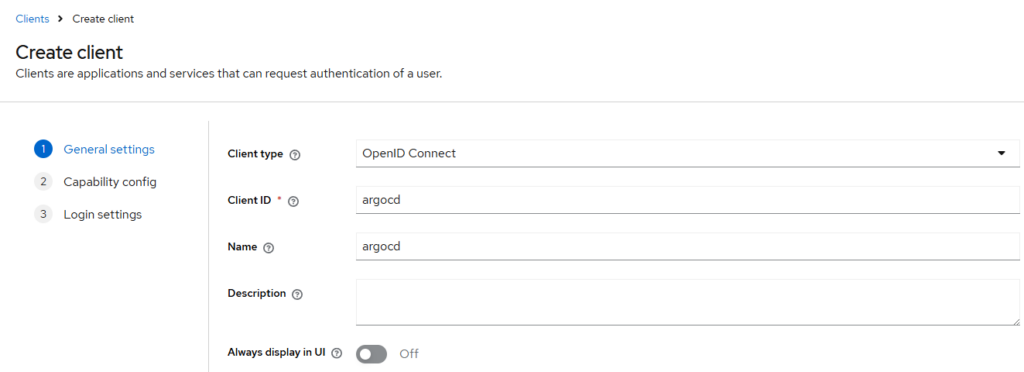
General settings
Set:
- Client type: OpenID Connect
- Client ID:
argocd
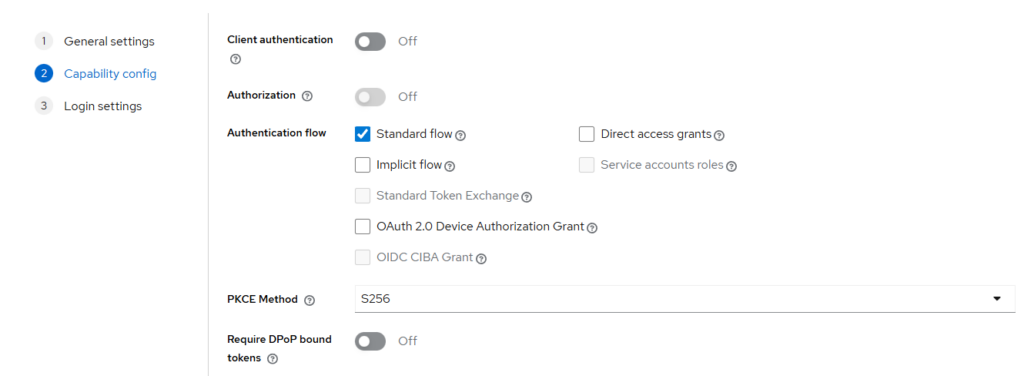
Capability config
Set:
- Client authentication: Off (public client)
- Standard flow: On
- PKCE Method:
S256 - Keep these Off:
- Authorization
- Implicit flow
- Direct access grants
- Device Authorization Grant
- CIBA
Login settings
- Root URL:
https://argocd.maksonlee.com - Home URL:
https://argocd.maksonlee.com/applications - Valid redirect URIs (UI + CLI):
https://argocd.maksonlee.com/auth/callbackhttps://argocd.maksonlee.com/pkce/verifyhttp://localhost:8085/auth/callback
- Valid post logout redirect URIs:
https://argocd.maksonlee.com/applications - Web origins:
https://argocd.maksonlee.com
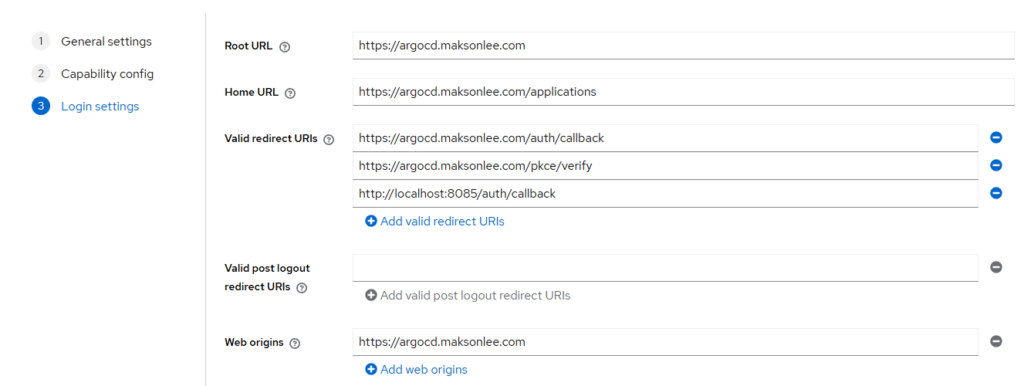
Why localhost:8085?
When you run argocd login --sso, the Argo CD CLI starts a local callback server (default port 8085) to complete the SSO flow.
- Create Keycloak groups and add users
Create groups
In Keycloak:
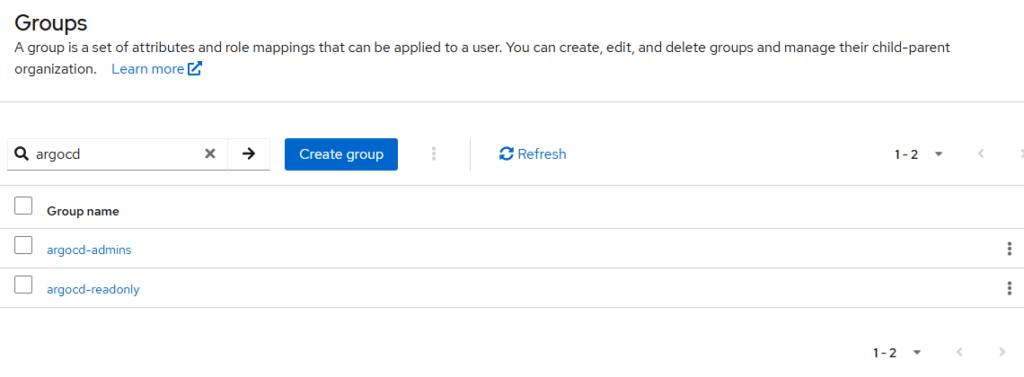
- Go to Groups
- Create:
argocd-adminsargocd-readonly
Add users to groups
- Add at least one Keycloak user to
argocd-admins(your admin SSO users) - Add any read-only users to
argocd-readonly(optional)
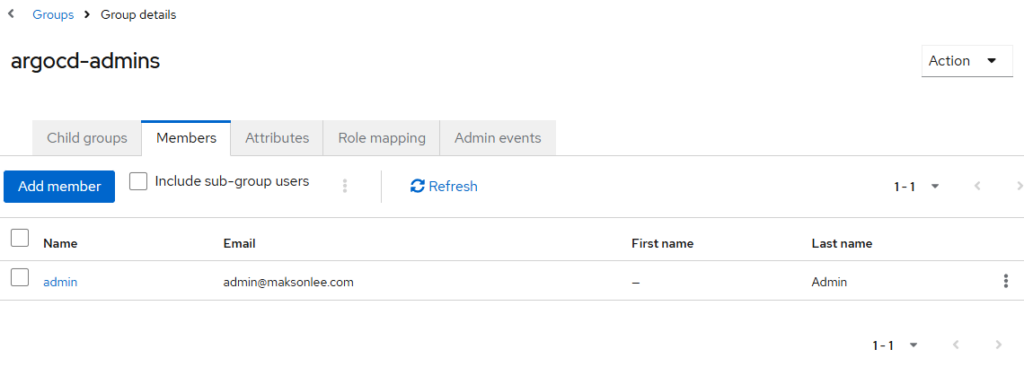
In my lab I have users in normal groups like engineering / project-managers. That’s fine because we set policy.default: role:readonly later.
- Add
groupsclaim into Keycloak tokens (Client Scope + Mapper)
Argo CD RBAC needs Keycloak to include group names in the token as:
"groups": ["argocd-admins"]Create a client scope named groups
Go to Client scopes → Create client scope:
- Name:
groups - Display on consent screen: Off (recommended)
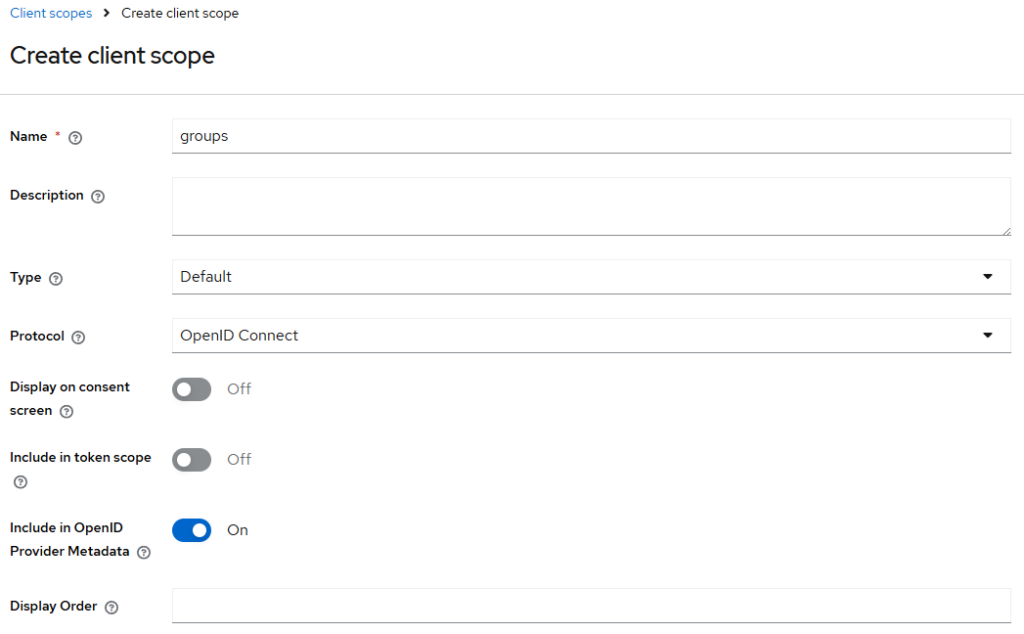
Save.
Add mapper: Group Membership
Go to:
- Client scopes →
groups→ Mappers → Add mapper - Mapper type: Group Membership
Set:
- Name:
groups - Token Claim Name:
groups - Full group path: Off
- Add to ID token: On
- Add to access token: On
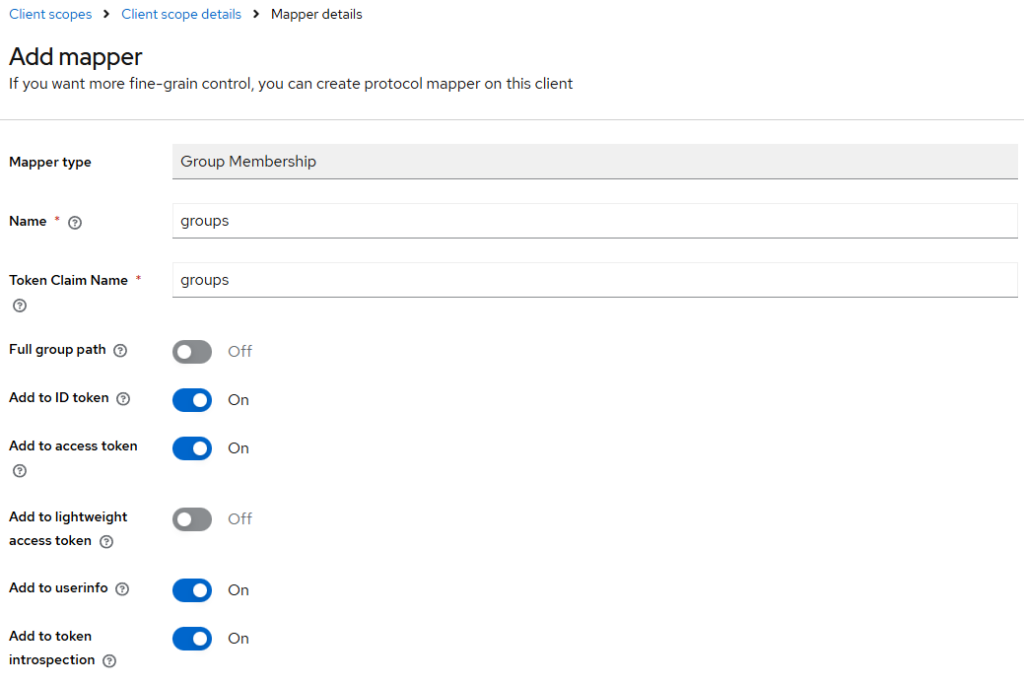
Save.
Attach groups scope to the argocd client as Default
Go to:
- Clients →
argocd→ Client scopes → Add client scope - Select
groups - Add as Default
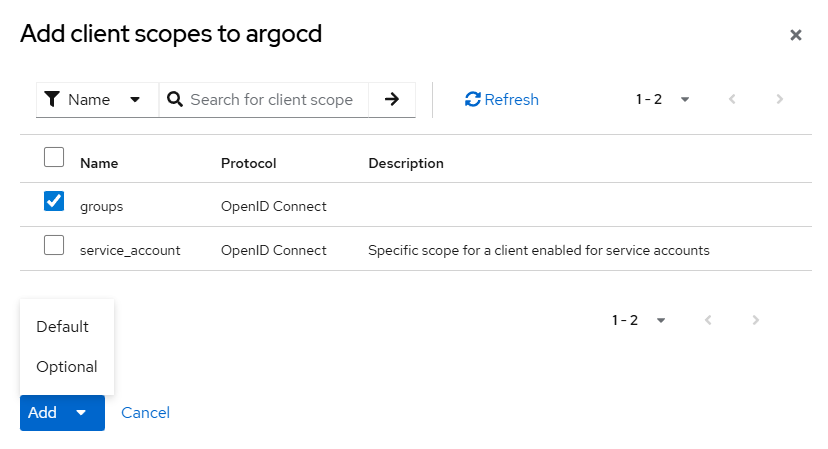
- Configure Argo CD OIDC (PKCE) in
argocd-cm
argocd-cm is Argo CD’s main ConfigMap for server settings (URL, SSO/OIDC, etc.).
Edit it:
kubectl -n argocd edit configmap argocd-cmMake sure url is set:
data:
url: https://argocd.maksonlee.comAdd OIDC config:
data:
  oidc.config: |
    name: Keycloak
    issuer: https://keycloak.maksonlee.com/realms/maksonlee.com
    clientID: argocd
    enablePKCEAuthentication: true
requestedScopes: ["openid", "profile", "email", "groups"]Save and exit.
If your Argo CD is behind an Ingress or reverse proxy, setting url: is important so redirects point back to the public hostname.
- Configure Argo CD RBAC mapping in
argocd-rbac-cm
Edit:
kubectl -n argocd edit configmap argocd-rbac-cmUse this RBAC config:
data:
  policy.csv: |
    g, argocd-admins, role:admin
    g, argocd-readonly, role:readonly
  policy.default: role:readonly
scopes: '[groups]'What this does:
- If a user is in Keycloak group
argocd-admins, they become Argo CD admin - If a user is in Keycloak group
argocd-readonly, they become Argo CD readonly - If a user is in any other groups (or no group), they still get readonly because of
policy.default: role:readonly
- Restart Argo CD server
Restart to apply changes:
kubectl -n argocd rollout restart deploy/argocd-server
kubectl -n argocd rollout status deploy/argocd-server- Test SSO login
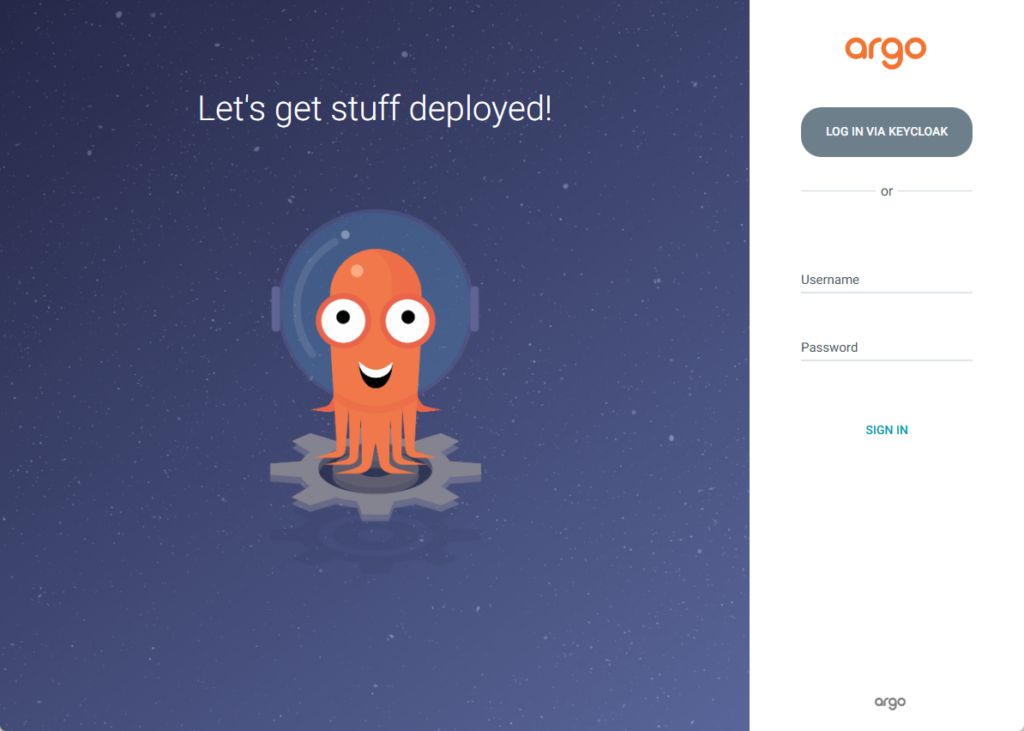
Open:
https://argocd.maksonlee.com
Click the Keycloak SSO login and sign in.
- CLI SSO from an SSH session (remote host)
In my lab, I run the Argo CD CLI on a remote host (k8s-1) over SSH, but I complete Keycloak login in my local browser. The important detail is:
argocd login --ssostarts a local callback listener on the machine running the CLI (remote host).- Keycloak redirects to
http://localhost:<port>/auth/callback. - When you are SSH’ed into a remote host, your browser’s
localhostis your laptop, so you must use SSH local port forwarding as part of the normal login procedure.
SSH with local port forwarding (keep it open)
From your laptop/workstation:
ssh -L 8085:127.0.0.1:8085 ubuntu@k8s-1.maksonlee.comThis forwards:
your laptop localhost:8085 → remote host localhost:8085
Run argocd login --sso on the remote host
Inside the SSH session (on k8s-1):
argocd login argocd.maksonlee.com \
  --sso --grpc-web \
  --sso-launch-browser=false \
--sso-port 8085You will see output like this (note the redirect_uri=http://localhost:8085/auth/callback):
Performing authorization_code flow login: https://keycloak.maksonlee.com/...&redirect_uri=http%3A%2F%2Flocalhost%3A8085%2Fauth%2Fcallback...
To authenticate, copy-and-paste the following URL into your preferred browser: https://keycloak.maksonlee.com/realms/...Open the printed URL in your local browser
Copy the URL from the SSH terminal and paste it into your laptop browser.
After you sign in to Keycloak, the browser redirects to:
http://localhost:8085/auth/callback?…
Because of the SSH -L tunnel, this request reaches the remote CLI listener, and you will see a success confirmation page.
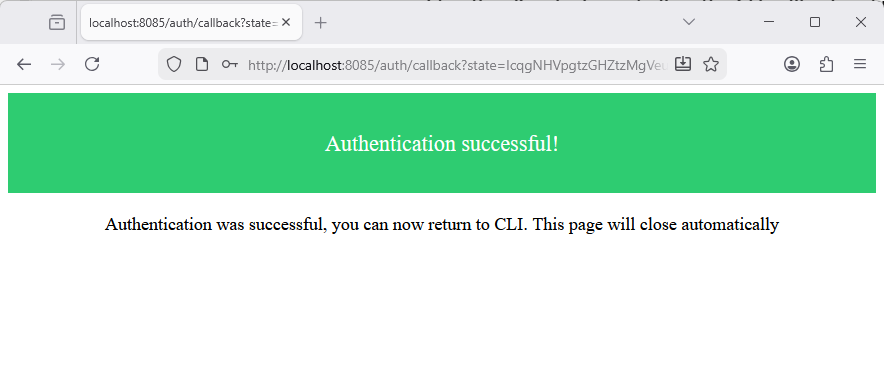
Confirm the CLI completed login
Back in the SSH terminal, you should see:
Authentication successful
'maksonlee@maksonlee.com' logged in successfully
Context 'argocd.maksonlee.com' updatedDid this guide save you time?
Support this site