
This guide enables GitHub login for a self-hosted Teleport Community Edition cluster using a GitHub OAuth App and maps GitHub organization teams → Teleport roles.
All Teleport configuration commands run on the Teleport server. For headless OAuth, you’ll open the login URL on your workstation via SSH port-forwarding.
What you’ll build
- GitHub login in the Teleport Web UI
tsh login --auth=githubfor CLI- Team-to-role mapping (example):
maksonlee-labs/admins→editor,auditormaksonlee-labs/users→access
- Local login kept as break-glass (
allow_local_auth: true)
Important notes
1) GitHub usernames are not emails
Teleport usernames will become GitHub usernames. If you have any workflow that assumes “username == email”, adjust it.
2) Teleport CE + GitHub org “external SSO”
Teleport Community Edition can reject GitHub orgs that enforce external SSO. If you hit connector creation errors, check your org’s authentication policies.
3) Team mapping uses slugs
Teleport expects org slug and team slug (the URL form), not a display name.
Team URL looks like:
https://github.com/orgs/<org>/teams/<team-slug>
Use <team-slug> in mappings.
Prerequisites
- Teleport server is already running and reachable at:
https://teleport.maksonlee.com
- A GitHub Organization (example:
maksonlee-labs) - GitHub teams created (example:
admins,users) - Your GitHub user is added to the org and to at least one mapped team
- You can run
sudoon the Teleport server
Lab context (example)
- Teleport proxy:
teleport.maksonlee.com:443 - GitHub org:
maksonlee-labs - Teams:
admins,users
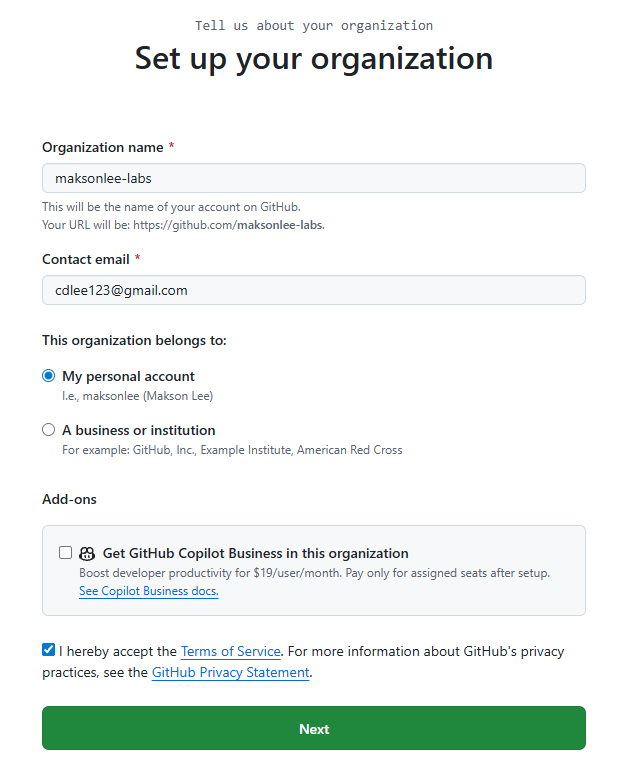
- Create GitHub org + teams
- Create (or use) a GitHub Organization:
maksonlee-labs
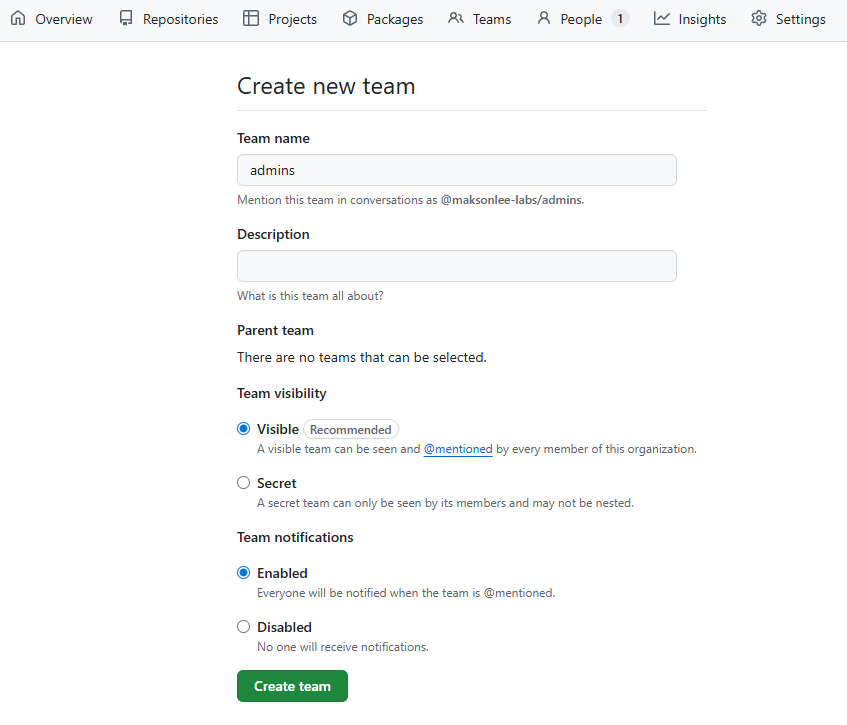
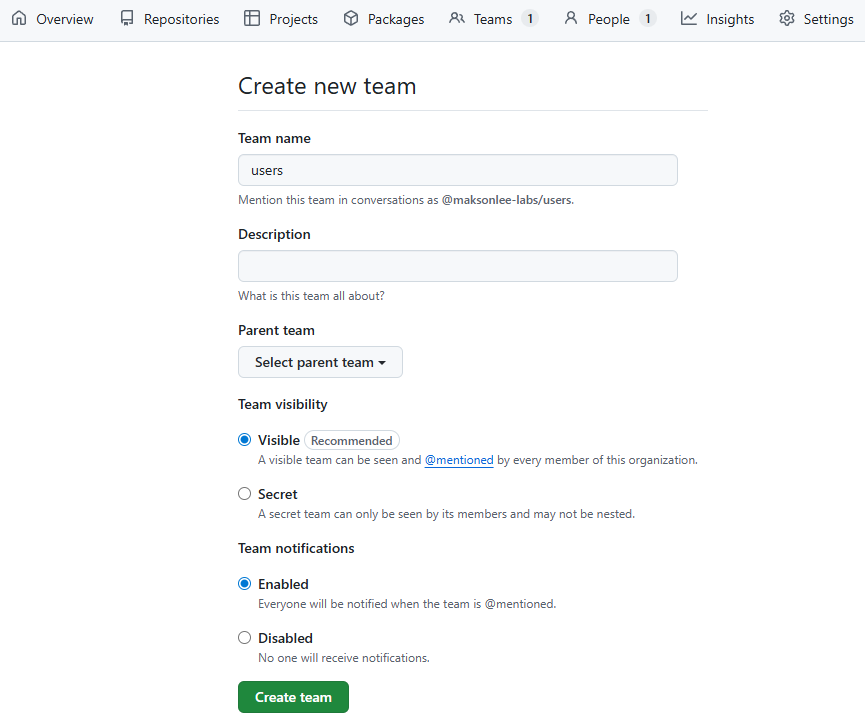
- Create teams:
adminsusers
- Add users:
- Add your GitHub user to the org
- Add your GitHub user to
admins(and optionallyuserstoo)
If a user isn’t in any mapped team, they may authenticate but end up with no Teleport roles.
- Create the GitHub OAuth App (and transfer it to the org)
GitHub OAuth Apps are created from your personal Developer Settings:
GitHub → Settings → Developer settings → OAuth Apps → New OAuth App
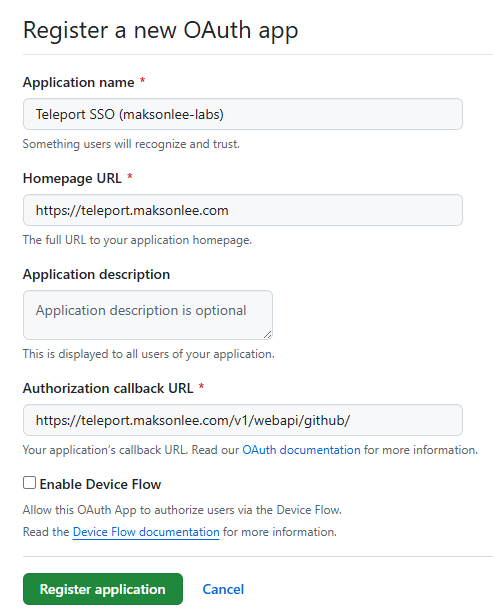
Fill:
- Application name
- Teleport SSO (maksonlee-labs)
- Homepage URL
- https://teleport.maksonlee.com
- Authorization callback URL
- https://teleport.maksonlee.com/v1/webapi/github/
- Leave Enable Device Flow unchecked.
Click Register application.
Transfer ownership to the org (recommended)
After creation:
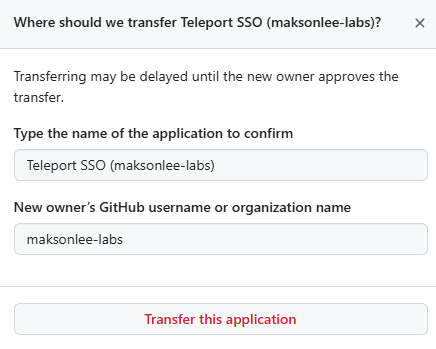
- Open the OAuth App page
- Click Transfer ownership
- New owner:
maksonlee-labs - Confirm and transfer
- Approve the transfer under the org if prompted
This makes the app managed under the org for cleaner long-term ownership.
- Get Client ID + Client Secret safely
On the OAuth App page:
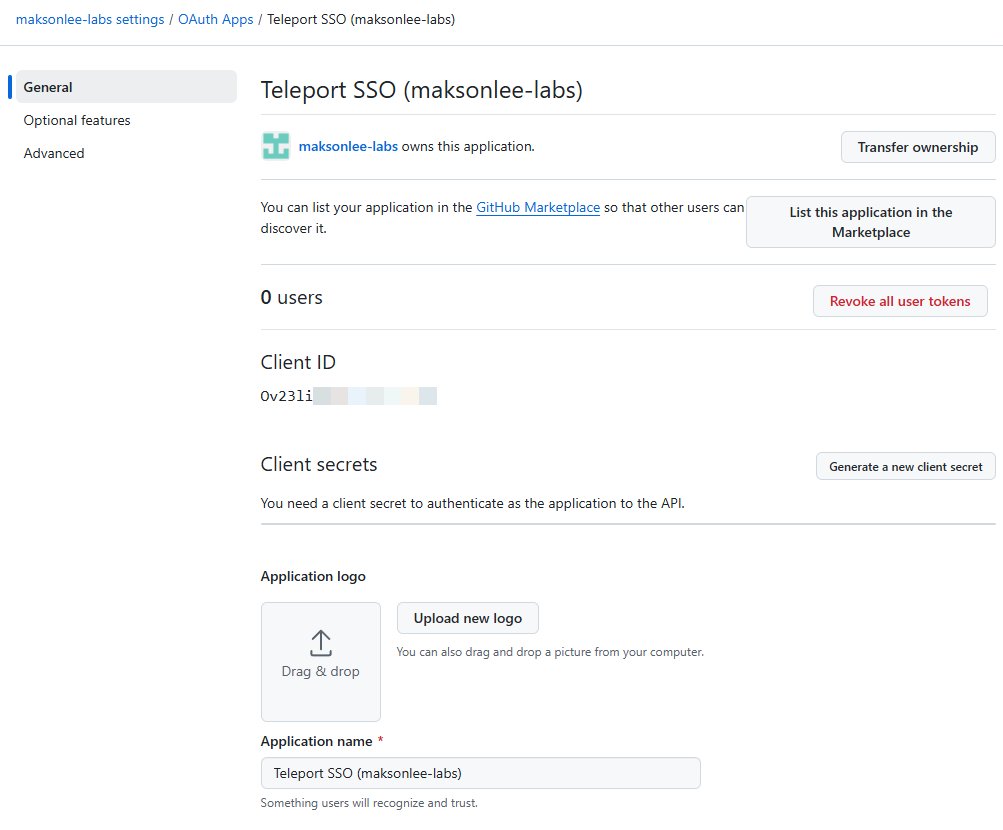
- Copy Client ID
- Click Generate a new client secret
- Copy the secret immediately
Run this in the directory where you want to store the file:
umask 077
cat > client-secret.txt
# paste the GitHub client secret, then press Ctrl-D
chmod 600 client-secret.txtThis creates client-secret.txt with safe permissions from the start.
- Generate the Teleport GitHub connector YAML
Export variables (replace the Client ID):
export GITHUB_ORG="maksonlee-labs"
export GITHUB_CLIENT_ID="PASTE_CLIENT_ID_HERE"Generate github.yaml as root (because tctl needs to read /etc/teleport.yaml):
sudo -E tctl sso configure github \
  --id="${GITHUB_CLIENT_ID}" \
  --secret="$(cat client-secret.txt)" \
  --teams-to-roles="${GITHUB_ORG},admins,editor,auditor" \
  --teams-to-roles="${GITHUB_ORG},users,access" \
> github.yamlMove and lock it down:
sudo mv github.yaml /root/github.yaml
sudo chmod 600 /root/github.yaml- Test the connector (
tctl sso test)
Run:
sudo cat /root/github.yaml | sudo tctl sso testTeleport prints a URL like:
http://127.0.0.1:41857/<token>
Headless: SSH port forwarding (use the same port shown)
On your workstation, run:
ssh -L 41857:127.0.0.1:41857 administrator@teleport.maksonlee.comThen open (in your workstation browser):
http://127.0.0.1:41857/<token>
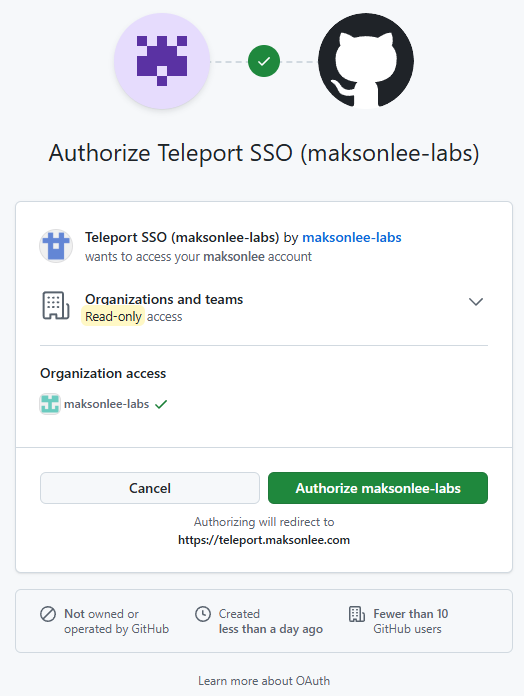
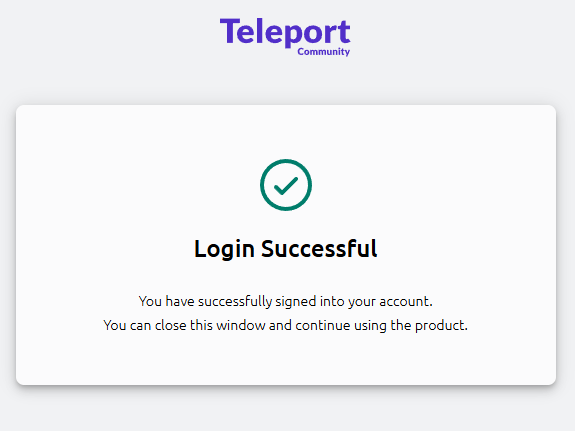
After success, the server output should include:
Success! Logged in as: <github-username>teams: admins, users- roles include your mapped roles (example:
editor,auditor,access)
If you get no roles, your user is not in the mapped teams, or you used the wrong slug.
- Apply the connector + switch default auth to GitHub + verify login
- Create the connector in Teleport
sudo tctl create -f /root/github.yamlVerify:
sudo tctl get github- Switch default auth to GitHub (keep local break-glass)
Check current:
sudo tctl get capEdit:
sudo tctl edit capSet:
spec:
  type: github
allow_local_auth: trueSave and exit, then verify:
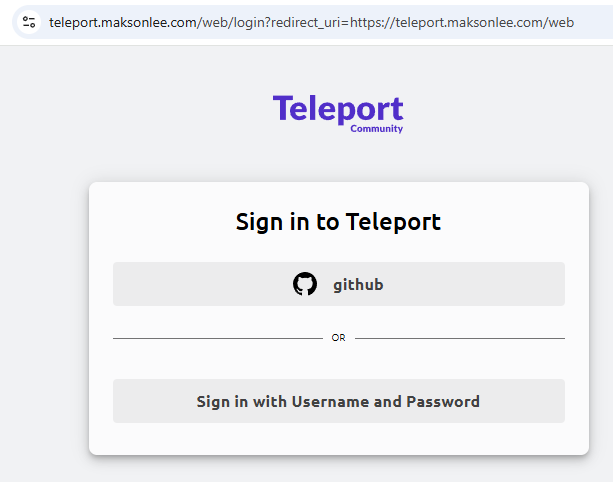
sudo tctl get cap- Verify login (Web UI + CLI)
Web UI:
https://teleport.maksonlee.com
CLI on the Teleport server:
tsh logout
tsh login --proxy=teleport.maksonlee.com --auth=githubYou will again get a localhost link like:
http://127.0.0.1:40221/<token>
Forward that port and open the link (example):
ssh -L 40221:127.0.0.1:40221 administrator@teleport.maksonlee.comOpen:
http://127.0.0.1:40221/<token>
Did this guide save you time?
Support this site