
WordPress email delivery can be unreliable when it uses PHP mail (password resets, contact form notifications, admin alerts). The fix is to send mail through a real SMTP provider.
This post shows how to send WordPress emails through Zoho Mail using the Post SMTP plugin. Even if you don’t use a Zoho-specific preset, Zoho works fine by selecting Other SMTP and entering Zoho’s SMTP settings.
What you’ll build
- WordPress sends outgoing email via Zoho SMTP
- Secure SMTP using:
- 587 (recommended) → STARTTLS
- or 465 → SSL
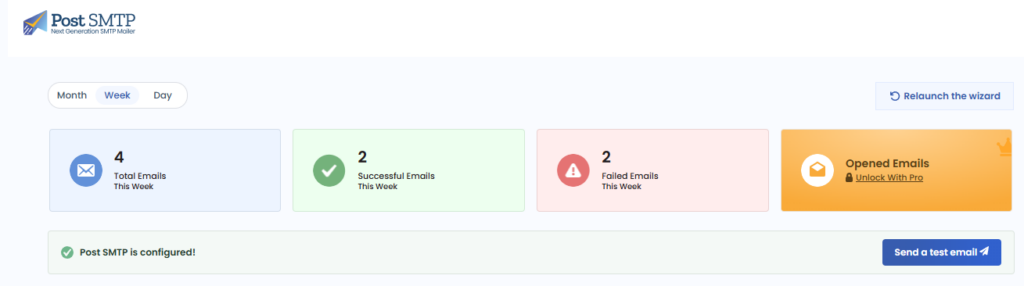
- A working test email and log entries in Post SMTP
Prerequisites
- A working Zoho Mail mailbox you will send from (example:
admin@yourdomain.com) - A Zoho App Password for SMTP (recommended; typically required if your Zoho account uses 2FA/MFA)
- Your WordPress server can connect outbound to Zoho SMTP on 587 or 465
If you haven’t set up Zoho Mail for your domain yet, follow my earlier post first:
If you already followed it, your MX/SPF/DKIM/DMARC are typically in place, which helps deliverability.
- Install Post SMTP
- WordPress Admin → Plugins → Add New
- Search Post SMTP
- Click Install Now → Activate
- Go to Post SMTP → Start the Wizard (or Relaunch the wizard)
- Choose “Other SMTP”
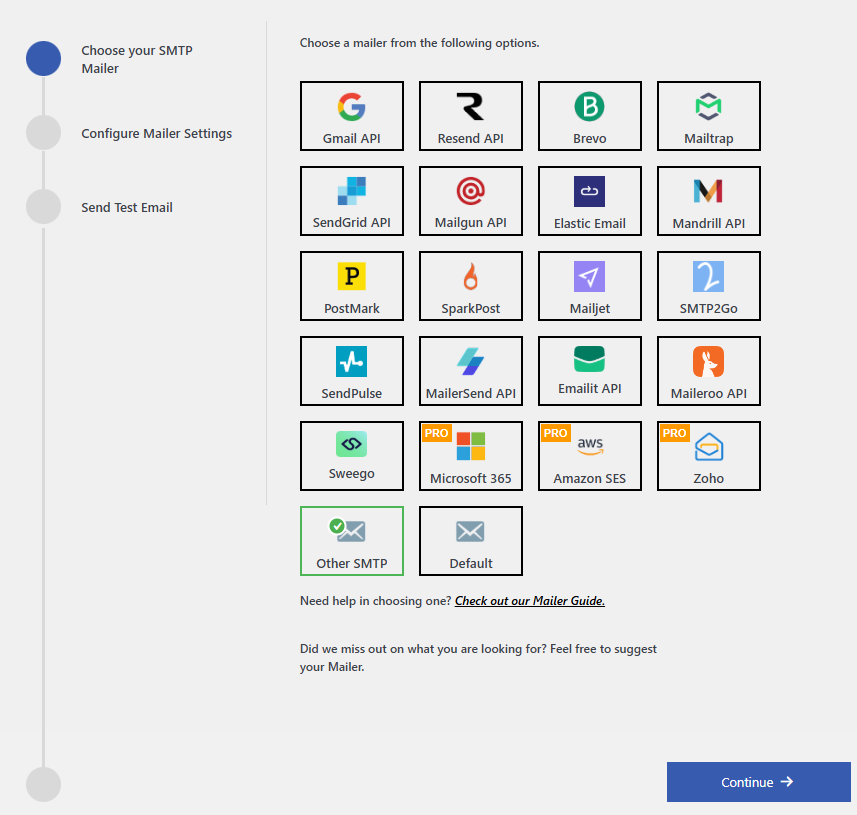
On the mailer selection screen:
- Select Other SMTP
- Click Continue
- Set the From Address (and lock it)
In the From Address section:
- From Email:
admin@yourdomain.com - Enable: Prevent changes on the From Email field by other Plugins and Themes
- From Name: your site name (example:
Makson WordPress) - Enable: Prevent changes on the From Name field by other Plugins and Themes
Why: some plugins/themes override the From header. Locking avoids sender mismatch and inconsistent headers.
- Configure Zoho SMTP (Other SMTP)
Fill the Other SMTP section like this:
SMTP Host: smtp.zoho.com
If your Zoho account uses a different region/data center, use the SMTP host shown in your Zoho Mail settings or Zoho’s official SMTP documentation for your region.
Port (this effectively determines encryption)
- 587 (recommended) → STARTTLS
- 465 → SSL
Credentials
- Username: your full Zoho mailbox address (example:
admin@yourdomain.com) - Password: your Zoho App Password
Click Save / Continue.
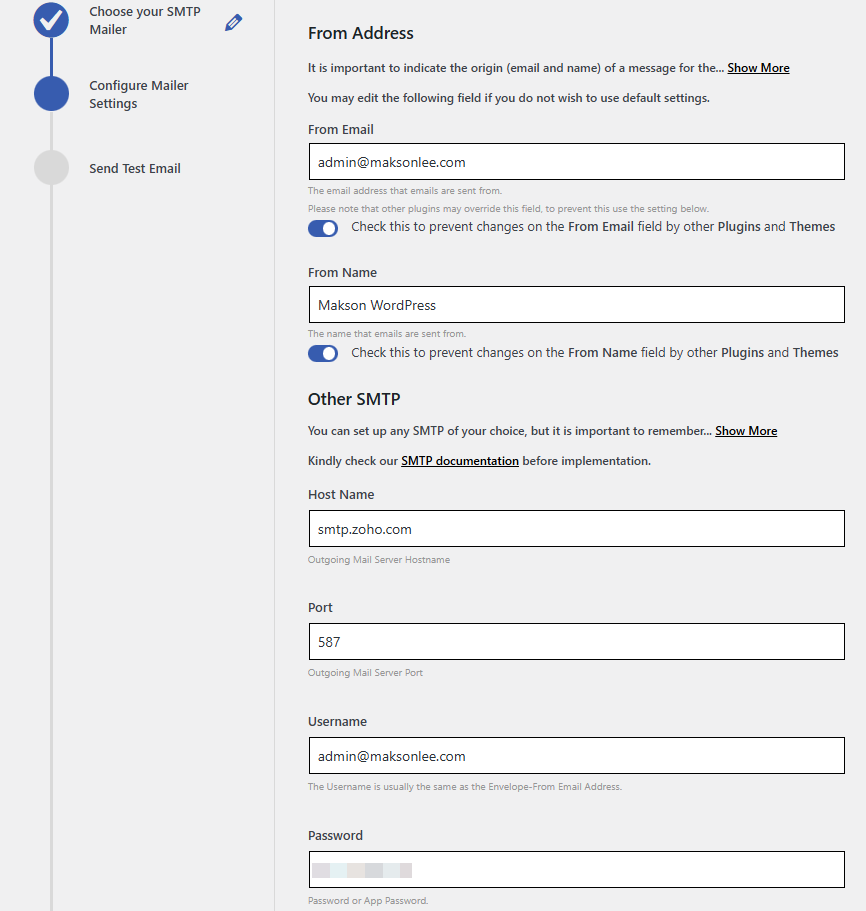
- Send a test email
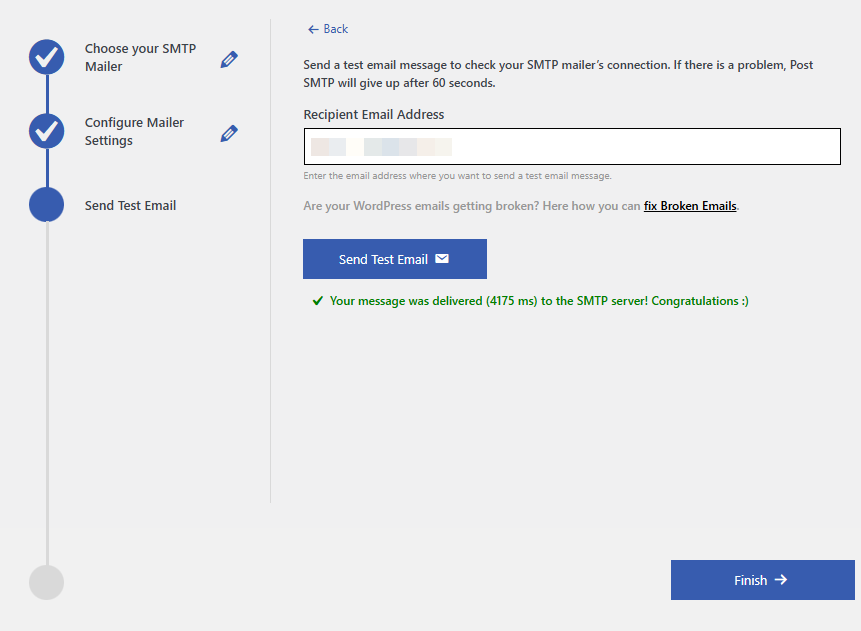
In the wizard’s Send Test Email step:
- Enter a recipient email (e.g., your Gmail)
- Click Send Test Email
If Post SMTP shows something like “Your message was delivered to the SMTP server!”, that means:
WordPress → Zoho SMTP is working.
Did this guide save you time?
Support this site