
This post shows how to configure JFrog Artifactory Open Source (OSS) to authenticate users against OpenDJ using LDAPS and a dedicated bind (manager) account.
What you’ll get:
- Log in to Artifactory using OpenDJ usernames (uid) + LDAP passwords
- Auto-create users in Artifactory on first successful LDAP login
- No Keycloak / OAuth / SAML required (OSS-friendly)
Environment
| Component | Value |
|---|---|
| OS | Ubuntu Server 24.04 |
| Artifactory | JFrog Artifactory Open Source (OSS) |
| Artifactory URL | https://artifactory.maksonlee.com |
| OpenDJ Hostname | ldap.maksonlee.com |
| LDAPS | ldaps://ldap.maksonlee.com:636 |
| Base DN | dc=maksonlee,dc=com |
| Users OU | ou=people,dc=maksonlee,dc=com |
| Service Accounts OU | ou=system,dc=maksonlee,dc=com |
| Bind DN | uid=artifactory,ou=system,dc=maksonlee,dc=com |
Why not authenticate to Keycloak?
Artifactory can integrate with Keycloak using OAuth/OIDC or SAML (Keycloak supports both), but those SSO-style authentication providers are not available in the OSS edition in practice.
- JFrog documents OAuth SSO as a licensed feature (subscription-limited).
- For SAML SSO, it’s commonly stated (and consistent with JFrog’s feature gating) that OSS does not support SAML SSO.
- LDAP auth is supported out-of-the-box and works well with OpenDJ.
So on Artifactory OSS, the most reliable approach is: Artifactory → OpenDJ (LDAP/LDAPS).
How LDAP auth works in Artifactory
When a user logs in:
- Artifactory binds to OpenDJ using a service/bind account (
uid=artifactory,...) - It searches for the user entry using your Search Filter
- It binds again as the user to verify the password
- If enabled, it auto-creates the user in Artifactory after the first successful login
- Create the bind account in OpenDJ
Create a service account in OpenDJ:
dn: uid=artifactory,ou=system,dc=maksonlee,dc=comThis account needs permission to:
- bind successfully
- search for users (at least enough to locate user DNs)
- Verify LDAPS bind and search from the Artifactory server
Before touching the Artifactory UI, verify that the Artifactory server can bind and search OpenDJ.
Bind test
ldapwhoami -H ldaps://ldap.maksonlee.com:636 \
-D "uid=artifactory,ou=system,dc=maksonlee,dc=com" -WYour working output:
dn: uid=artifactory,ou=system,dc=maksonlee,dc=comSearch test
ldapsearch -H ldaps://ldap.maksonlee.com:636 \
  -D "uid=artifactory,ou=system,dc=maksonlee,dc=com" -W \
  -b "ou=people,dc=maksonlee,dc=com" \
"(uid=maksonlee)" dnYour working output:
dn: uid=maksonlee,ou=people,dc=maksonlee,dc=com<br>result: 0 SuccessIf both commands succeed, LDAPS + credentials + directory structure are correct.
- Configure LDAP in Artifactory
Go to:
Administration → Authentication → LDAP → Add LDAP Settings
LDAP Settings
| Field | Value |
|---|---|
| Enabled LDAP | ✅ |
| Settings Name | opendj |
| LDAP URL | ldaps://ldap.maksonlee.com:636/dc=maksonlee,dc=com |
| Auto Create Users | ✅ |
| Allow Created Users Access To Profile Page | ✅ (optional) |
| Use Paged Results | ✅ |
| User DN Pattern | (leave empty) |
| Email Attribute | mail |
| Search Filter | (uid={0}) |
| Search Base | (leave empty) |
| Secure LDAP Search | ✅ |
| Search Sub-tree | ✅ |
| Manager DN | uid=artifactory,ou=system,dc=maksonlee,dc=com |
| Manager Password | (bind account password) |
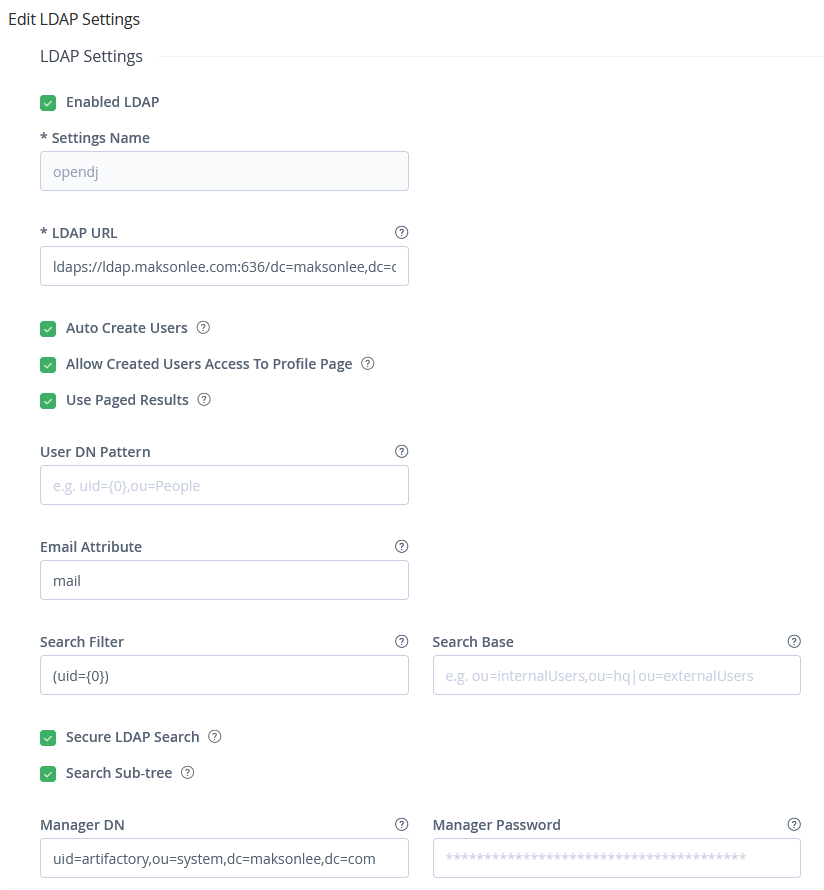
Click Save.
Test LDAP Connection
| Field | Value |
|---|---|
| Test User Name | maksonlee |
| Test Password | (maksonlee’s OpenDJ password) |
| Action | Click Test connection |

If the test succeeds, log out and try a real login.
- Log in using an LDAP user
- Log out of Artifactory
- Log in with:
- Username:
maksonlee - Password: (OpenDJ password)
- Username:
Because Auto Create Users is enabled, Artifactory will create a local “shadow user record” on the first successful login.
- Disable Internal Password Login
After enabling LDAP, you may see this enabled by default in some installs:
Administration → Security → General → Disable Internal Password Login ✅
What it means:
- ✅ Checked: users cannot log in using Artifactory “local” passwords (LDAP/external auth only)
- ⬜ Unchecked: local username/password logins are allowed again
Recommendation (don’t lock yourself out)
Even if you plan to run LDAP-only day-to-day:
- keep a break-glass local admin account available
- and test it before you rely on LDAP completely
- Why “Change Password” doesn’t work for LDAP users
You observed:
- In the profile page you can type a password, but Save is greyed out
- In user edit pages you may see banners like “credentials expired” / “password expiration is not enforced…”
This is because Artifactory’s password UI relates to internal Artifactory passwords, not LDAP. With LDAP authentication, Artifactory typically does not write password changes back into OpenDJ.
So: change passwords in OpenDJ, not Artifactory.
- Grant permissions to LDAP users
LDAP authentication only verifies identity. Authorization still happens in Artifactory.
Typical approach:
- Create groups/roles in Artifactory (e.g.,
dev,ci,admin) - Grant repo permissions to those groups
- Assign LDAP users to groups in Artifactory
Did this guide save you time?
Support this site