
In my previous post, I used EJBCA RA Web to issue ThingsBoard device certificates from an externally signed IoT device CA.
Previous guide:
That setup worked for issuing device credentials, but it used a PEM-only workflow. After downloading the PEM bundle once, I could use it directly with mosquitto_pub or split it into a device certificate and private key.
However, there was one important limitation:
if I lost the original downloaded PEM bundle, I could not simply download the same private key again from EJBCA.
EJBCA can still show the issued certificate later, and it can download the public certificate as PEM, DER, or PKCS#7. But those downloads do not include the private key.
To recover a private key later, EJBCA Key Recovery must be enabled before the certificate is issued.
This post shows how I enabled Key Recovery in EJBCA for cases where I intentionally want to download the same EJBCA-generated private key again. For normal production device certificate operations, I would usually revoke the old certificate and issue a new one instead.
Recommended Approach: Revoke and Issue a New Certificate
Before enabling Key Recovery, it is important to understand that recovering and downloading the same private key again is not usually the recommended operational workflow.
For most device authentication certificates, especially IoT device certificates, the safer and cleaner approach is:
private key lost
→ revoke the old certificate
→ issue a new certificate with a new key pair
→ reprovision the deviceThis is the recommended approach because the private key is the device identity. If the key was lost, copied, exposed, or handled incorrectly, it is usually better to stop trusting it and replace it with a new one.
Key Recovery should be treated as an optional convenience feature, not the default recovery strategy.
Use this guide only if you intentionally want EJBCA to store server-generated private keys so that you can download the same private key again later.
Recommended production approach:
revoke old certificate and issue a new one

Optional convenience approach:
enable EJBCA Key Recovery and recover the same private keyEnvironment
This guide continues from my previous EJBCA and ThingsBoard device certificate setup.
In my environment, I already had:
EJBCA CE on Ubuntu 24.04
WildFly
MariaDB
ThingsBoard CE
MQTT over TLS on mqtt.maksonlee.com:8883I also already had these EJBCA objects:
CA: IoTDeviceIssuingCA
Crypto Token: IoTDeviceIssuingCAToken
Certificate Profile: IoTDeviceCertProfile
End Entity Profile: IoTDeviceEEProfileThe previous workflow used:
Default Token: PEM file
Available Tokens: PEM file onlyThat is fine for one-time PEM bundle issuance, but it is not ideal for Key Recovery.
Why Key Recovery Is Not Just “Download Again”
At first, I expected EJBCA RA Web to have a simple button like:
Download private key againBut EJBCA does not work like that.
After a certificate is generated, EJBCA does not keep showing a direct private key download button. Instead, the Key Recovery flow is:
Search certificate
→ Recover Key
→ Set a new enrollment code
→ Enroll → Use Username
→ Download PKCS#12That means Recover Key is not the download step.
It only marks the certificate or end entity for recovery and sets a new enrollment code. The actual recovered private key is downloaded later through the enrollment flow.
In EJBCA terminology:
Recover Key = authorize the recovery
Enroll / Use Username = retrieve the recovered PKCS#12Important Limitation
Key Recovery only works if EJBCA generated the private key.
This works:
Key-pair generation: By the CA / On Server
Token type: P12 file / PKCS#12This does not work:
Key-pair generation: Provided by user / CSRIf I generate a CSR outside EJBCA, the private key stays outside EJBCA. In that case, EJBCA cannot recover it because it never had the private key.
Key Recovery is also not retroactive.
If a certificate was already issued before Key Recovery was enabled, EJBCA cannot recover that old private key.
1. Enable Key Recovery Globally
Log in to EJBCA Admin Web.
Go to:
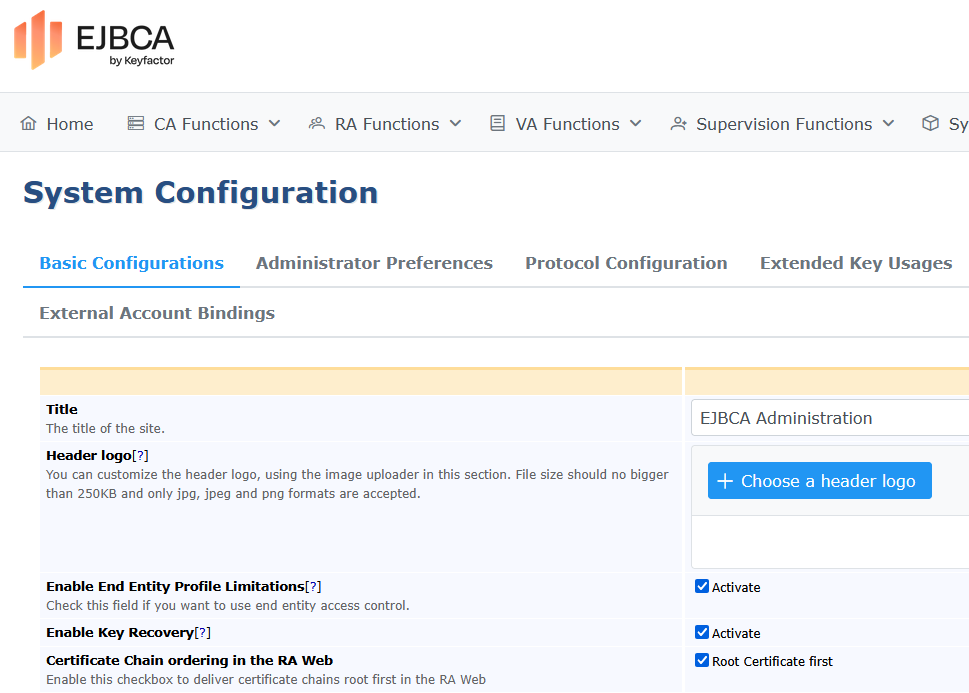
System ConfigurationEnable:
Enable Key RecoverySave the configuration.
This enables Key Recovery at the system level.
2. Update the End Entity Profile
Go to:
Admin Web → RA Functions → End Entity ProfilesEdit:
IoTDeviceEEProfile- Add PKCS#12 as an Available Token Type
In the previous post, I used a PEM-only token setting for device certificate issuance.
For Key Recovery, I only needed to add PKCS#12 as an available token type.
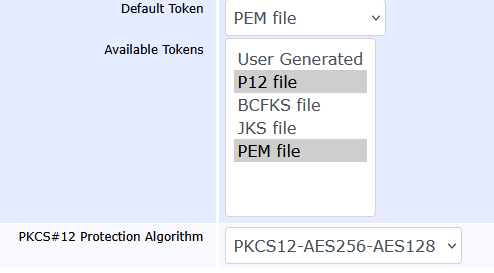
In the End Entity Profile, configure the Token section like this:
Default Token: PEM file

Available Tokens:
- PEM file
- P12 file / PKCS#12The important part is that P12 file / PKCS#12 must be available when issuing a certificate that I want to recover later.
For normal direct PEM download, I can still use PEM.
For the Key Recovery test, I selected:
Token type: P12 file / PKCS#12A recovered private key needs to be delivered as a keystore. PKCS#12 is the most practical choice here.
After downloading the .p12, I can still export PEM files from it later.
- Disable Auto-generated Enrollment Code
This part is important.
In my first attempt, I had auto-generated enrollment code enabled. That caused a confusing recovery problem.
During Key Recovery, RA Web asked me to enter:
Enrollment Code (New)
Confirm enrollment codeIf I left it empty, I got:
Enrollment code can not be emptyBut if I entered a value while the profile was set to auto-generate passwords, WildFly logged this error:
Autogenerated password must have password==null.Note: This behavior is based on my current EJBCA CE 9.3 environment.
So in EJBCA CE 9.3, for this manual Key Recovery workflow, I disabled auto-generated enrollment code and entered the new recovery enrollment code manually.
In the End Entity Profile, configure Password / Enrollment Code like this:
Password / Enrollment Code:
Use: enabled
Required: enabled
Auto-generated: disabledThis allows me to manually enter a new enrollment code during Key Recovery.
- Enable Key Recoverable
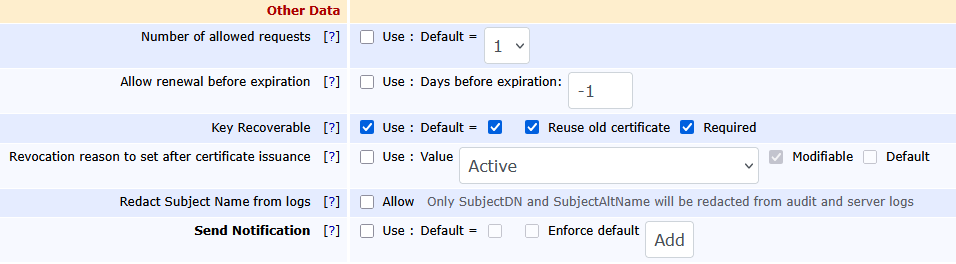
In the End Entity Profile, find:
Key RecoverableSet it like this:
Key Recoverable:
Use: enabled
Default: enabled
Required: enabled
Reuse old certificate: enabledSave the profile.
3. Create a New Test End Entity
Changing the profile does not always change existing end entities.
An existing end entity may still have the old token type saved, such as:
Token type: PEM fileSo I created a new test entity after changing the profile.
In RA Web, go to:
Enroll → Make New RequestUse:
Certificate Type: IoTDeviceEEProfile
Key-pair generation: By the CA
Token type: P12 file / PKCS#12For my test device, I used:
Username: SN-TEST-0003
Common Name: SN-TEST-0003Then I downloaded the initial PKCS#12 file.
At this point, EJBCA generated the private key and certificate. Because Key Recovery was enabled, it also saved encrypted key recovery data.
4. Confirm Key Recovery Data Was Stored
On the EJBCA server, I checked the WildFly log:
sudo journalctl -u wildfly -n 300 --no-pager | grep -iE \
'KEYRECOVERY|Keyrecovery|KeyRecoveryData|ADDDATA|ERROR|Exception'A successful result looks like this:
KEYRECOVERY_ADDDATA;SUCCESS
Keyrecovery data for certificate ... added.That means EJBCA stored the private key recovery data.
5. Recover the Key
In RA Web, go to:
Search → CertificatesSearch for the test certificate:
SN-TEST-0003Open the certificate details page.
Click:
Recover Key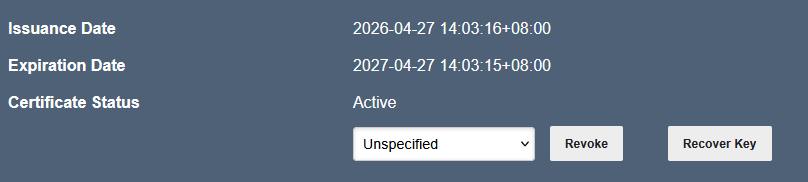
EJBCA asks for:
Enrollment Code (New)
Confirm enrollment codeEnter a new strong enrollment code.
This is not the old password. It is a new recovery code used to download the recovered PKCS#12.
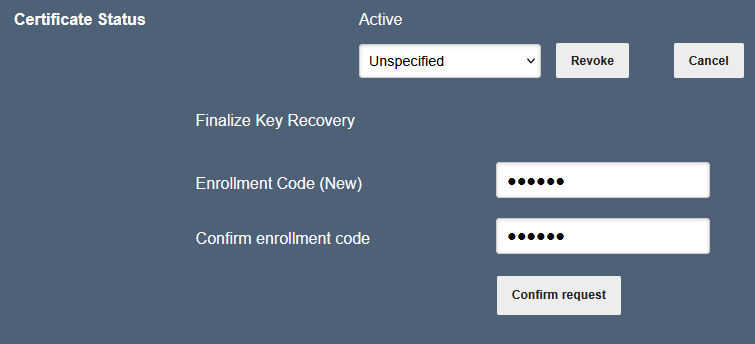
After confirming, EJBCA marks the certificate for recovery.
On the server, the log should show:
Key recovery performed successfully. Certificate ready for enrollment6. Download the Recovered PKCS#12
Now go to:
RA Web → Enroll → Use UsernameRA Web → Enroll → Use Username
Username: SN-TEST-0003
Enrollment Code: the new recovery enrollment code
After that, EJBCA shows:
Download PKCS#12Click it.

The downloaded .p12 contains:
the recovered private key
the device certificate
the certificate chainThe password for the downloaded .p12 is the new enrollment code I entered during recovery.
Troubleshooting
ClassCastException setting BagAttributes
When I tried to recover and download a PKCS#12 file, RA Web showed a generic error:
An error occurred during key recovery. Check log for more informationThe real problem was in the WildFly log.
On the EJBCA server, I checked the log with:
sudo journalctl -u wildfly -n 300 --no-pager | grep -iE \
'key recovery|keyrecover|recover|EJBException|Exception|AuthorizationDenied|keyEncryptKey|NoSuchAlgorithm|NoSuchProvider|not recoverable|KeyRecoveryData|ClassCastException|PKCS12BagAttributeCarrier|resteasy'The log showed this error:
ClassCastException setting BagAttributes, can not set friendly name
X509CertificateObject cannot be cast to PKCS12BagAttributeCarrierIn my environment, this was caused by a Bouncy Castle library conflict from the WildFly RESTEasy Crypto module.
First, I checked whether WildFly still referenced resteasy-crypto:
sudo grep -n "resteasy-crypto\|bouncycastle" \
/opt/wildfly/modules/system/layers/base/org/jboss/as/jaxrs/main/module.xmlI saw this line:
<module name="org.jboss.resteasy.resteasy-crypto" optional="true"/>To fix it, I first backed up the WildFly module configuration:
sudo cp /opt/wildfly/modules/system/layers/base/org/jboss/as/jaxrs/main/module.xml \
/opt/wildfly/modules/system/layers/base/org/jboss/as/jaxrs/main/module.xml.bak.$(date +%F-%H%M%S)Then I removed the resteasy-crypto module reference:
sudo sed -i '/org.jboss.resteasy.resteasy-crypto/d' \
/opt/wildfly/modules/system/layers/base/org/jboss/as/jaxrs/main/module.xmlI also renamed the module directory instead of deleting it immediately:
sudo mv /opt/wildfly/modules/system/layers/base/org/jboss/resteasy/resteasy-crypto \
/opt/wildfly/modules/system/layers/base/org/jboss/resteasy/resteasy-crypto.disabledThen I restarted WildFly:
sudo systemctl restart wildflyAfter the restart, I checked the log again:
sudo journalctl -u wildfly -n 200 --no-pager | grep -iE \
'ClassCastException|PKCS12BagAttributeCarrier|resteasy-crypto|bouncycastle|error|failed'After removing resteasy-crypto and restarting WildFly, the PKCS#12 recovery download worked.
If you want to confirm that the recovery process itself is working, check for these messages:
KEYRECOVERY_ADDDATA;SUCCESS
KEYRECOVERY_MARKED;SUCCESSThose messages mean that EJBCA stored the key recovery data and marked the certificate for recovery successfully. In this case, the failure was not caused by the Key Recovery configuration itself. The failure happened later when EJBCA tried to generate the recovered PKCS#12 file.