Introduction
This guide walks you through installing Gerrit 3.11.2 on Ubuntu 24.04, using Java 21 and a dedicated system user. The installation is done in development mode using the embedded Jetty server and H2 database, and Gerrit is managed with systemd as a background service.
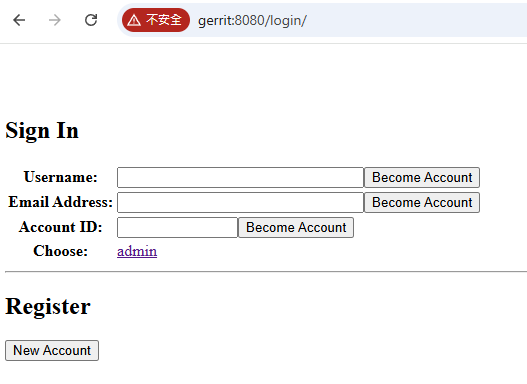
Authentication is handled via Gerrit’s default development mode, allowing you to log in directly as admin with no password.
1. Install Java 21
sudo apt update
sudo apt install openjdk-21-jdk -yVerify:
java -versionYou should see something like:
openjdk version "21" ...2. Create the gerrit System User
sudo groupadd --system --gid 2001 gerrit

sudo useradd --system --uid 2001 --gid 2001 \
  --home /home/gerrit \
  --shell /bin/bash \
  --create-home \
gerrit3. Create the Gerrit Installation Directory
sudo mkdir -p /srv/gerrit
sudo chown gerrit:gerrit /srv/gerrit4. Download and Initialize Gerrit 3.11.2
Switch to the gerrit user:
sudo su - gerritDownload the Gerrit WAR file:
wget https://gerrit-releases.storage.googleapis.com/gerrit-3.11.2.war -O gerrit.warInitialize Gerrit:
java -jar gerrit.war init --batch --dev -d /srv/gerritGerrit will be started automatically after initialization.
Exit the user shell:
exit5. Confirm Gerrit is Running
You can check that Gerrit is running with:
sudo -u gerrit /srv/gerrit/bin/gerrit.sh statusIf needed, you can stop it with:
sudo -u gerrit /srv/gerrit/bin/gerrit.sh stop6. Configure Gerrit as a systemd Service
Create the service unit file:
sudo vi /etc/systemd/system/gerrit.servicePaste:
[Unit]
Description=Gerrit Code Review
After=network.target

[Service]
Type=simple
LimitNOFILE=65536
User=gerrit
ExecStart=/usr/bin/java -jar /srv/gerrit/bin/gerrit.war daemon -d /srv/gerrit
RemainAfterExit=yes
Restart=on-failure
OOMScoreAdjust=-1000

[Install]
WantedBy=multi-user.targetEnable and start Gerrit via systemd:
sudo systemctl daemon-reload
sudo systemctl enable --now gerritVerify it’s active:
sudo systemctl status gerritExpected:
Active: active (running)7. Access Gerrit Web UI
Open your browser and go to:
http://gerrit:8080
You’ll see a login screen. Under “Choose”, click on: “admin”, that logs you in as the default administrator (no password required in dev mode).